What changed in each version, with screens from the app.
Version 0.4.78
AI voice-over for longer scripts
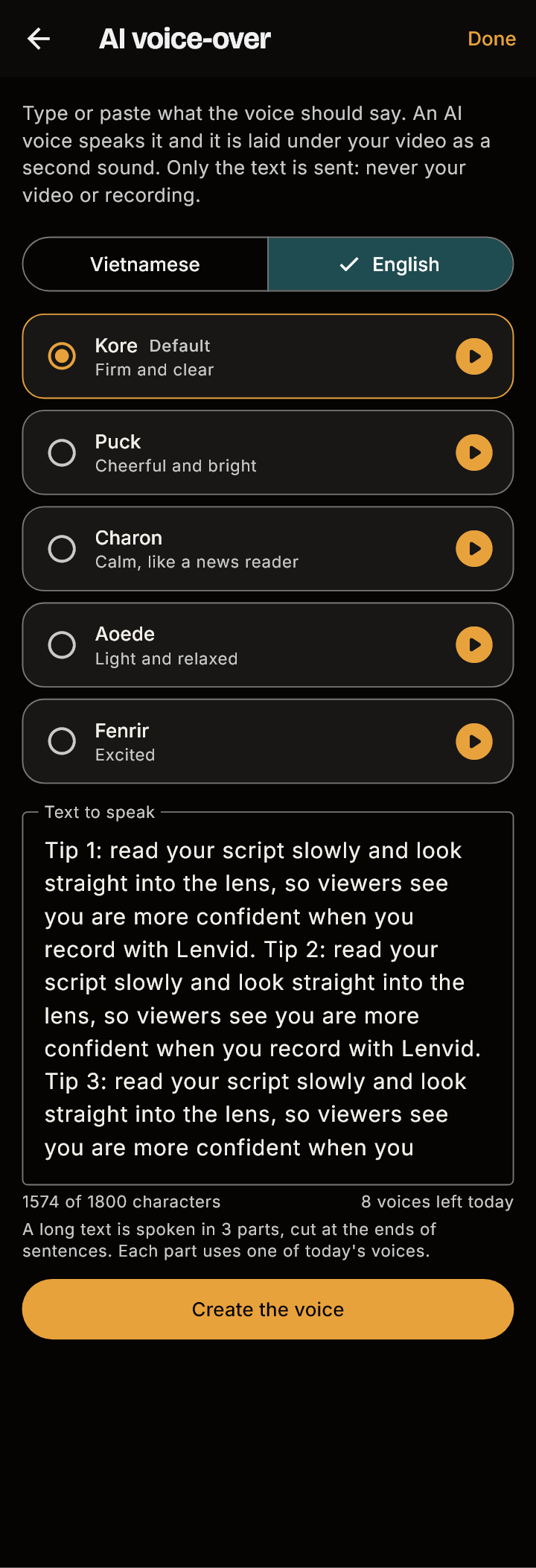
The AI voice-over on the Takes screen now reads longer texts, up to 1,800 characters, and says the name Lenvid the way it is meant to sound.
A long text is spoken in parts. Lenvid cuts it at the ends of sentences into parts of about the same size, speaks them one after another and joins them into one voice-over with a short pause between them.
The screen tells you how many parts your text will take, and that each part uses one of today's voices, so there are no surprises in the count of voices left.
If one part fails, nothing is saved, so you never end up with a voice-over that stops halfway.
The text limit went up from 600 to 1,800 characters.
Names are said right: the voice now says Lenvid as a person would, instead of guessing.
A long text with sample words: the screen says it will be spoken in 3 parts
Website
Write to me from the Support page
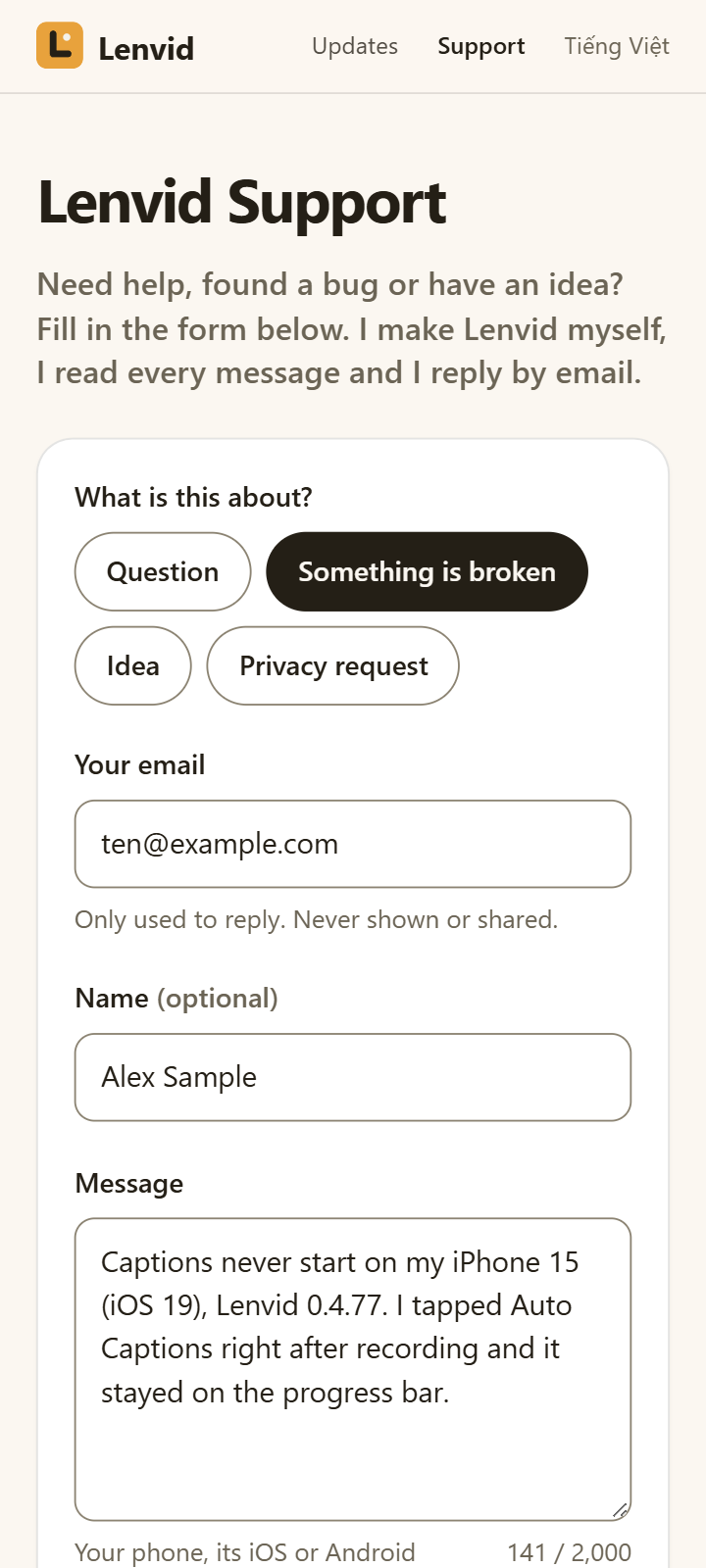
The Support page now has a contact form. Pick what it is about, add your email and a message, and it goes straight to my inbox. I read every message and reply by email.
Four topics to choose from: Question, Something is broken, Idea and Privacy request.
Only your email and a message are needed; your name is optional. The form tells you what to include: your phone, its iOS or Android version, the app version, and what you did before it went wrong.
You tick a box to let Lenvid use your email and message to reply to you. The form sends nothing else, and the privacy policy now has a section about it.
A quick check that you are not a robot runs before a message is sent, so the form stays free of spam.
The pages no longer show an email address. This form is how you write to me. You cannot attach files, but you can send a screenshot in your answer to my reply.
The Support page on a phone, with the form filled in with sample text
Version 0.4.77
Listen to your script before you film
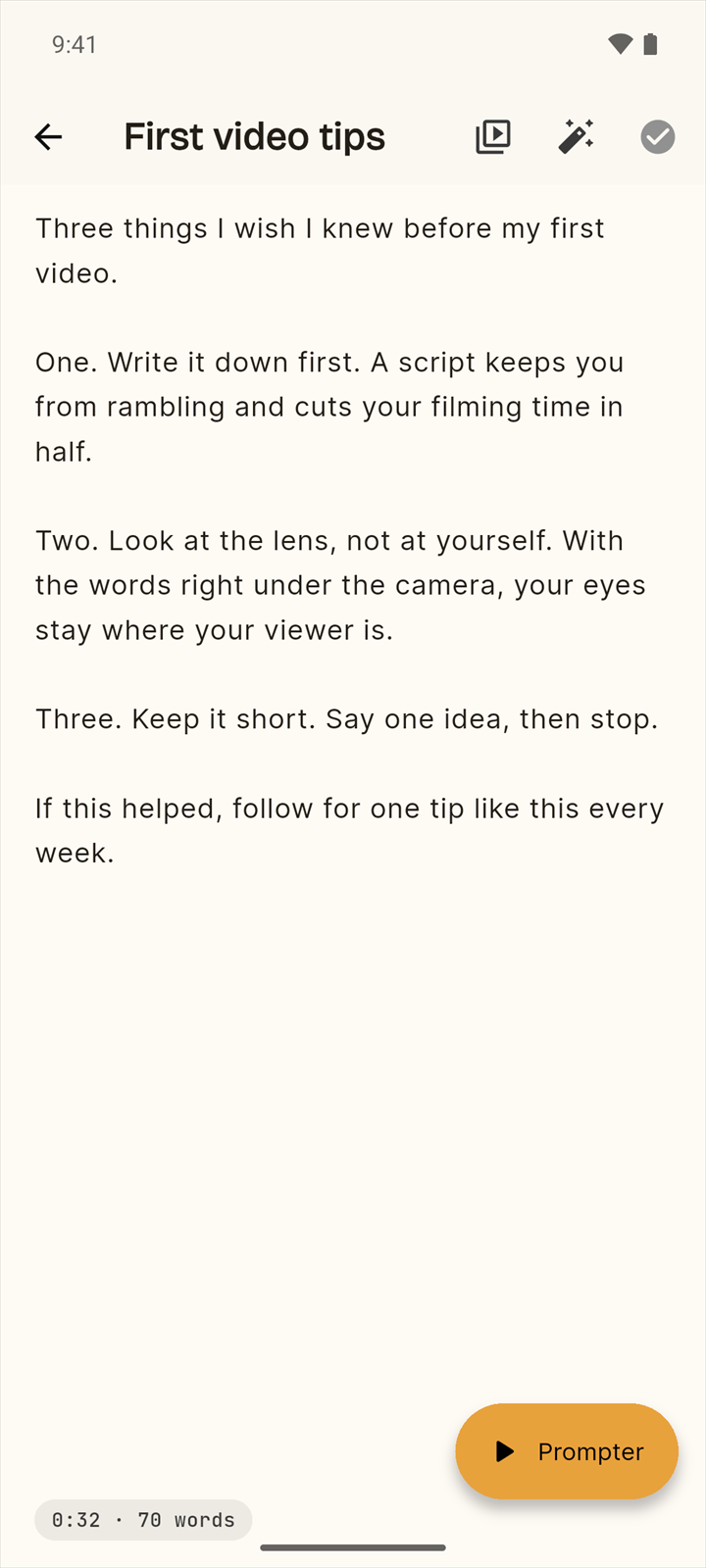
A new Listen button on the script screen reads your script aloud with your phone’s own voice, in English or Vietnamese, so you can hear how it sounds before you film. It works without a network, and nothing you wrote leaves your phone.
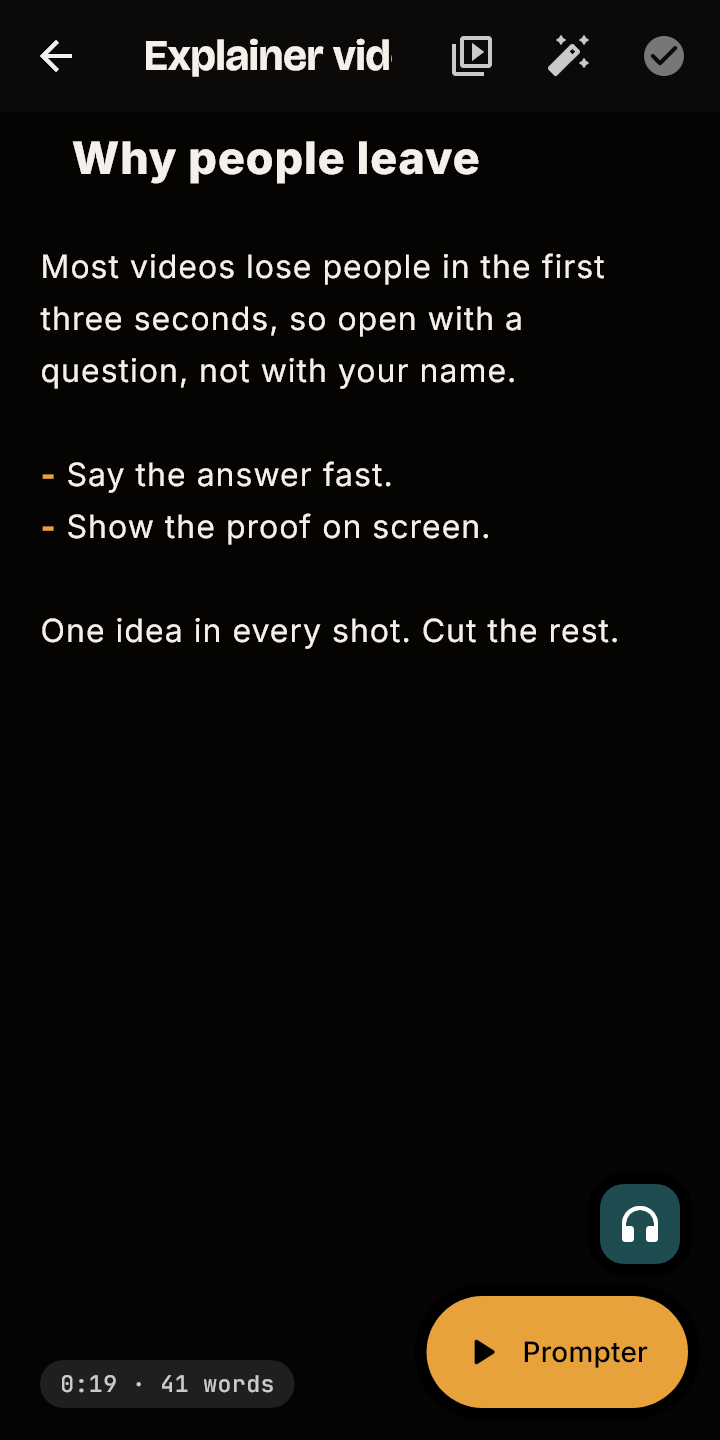
A small headphones button above Prompter on the script screen opens the Listen sheet. It is off while the script is empty, and not shown on a phone that has no voice at all.
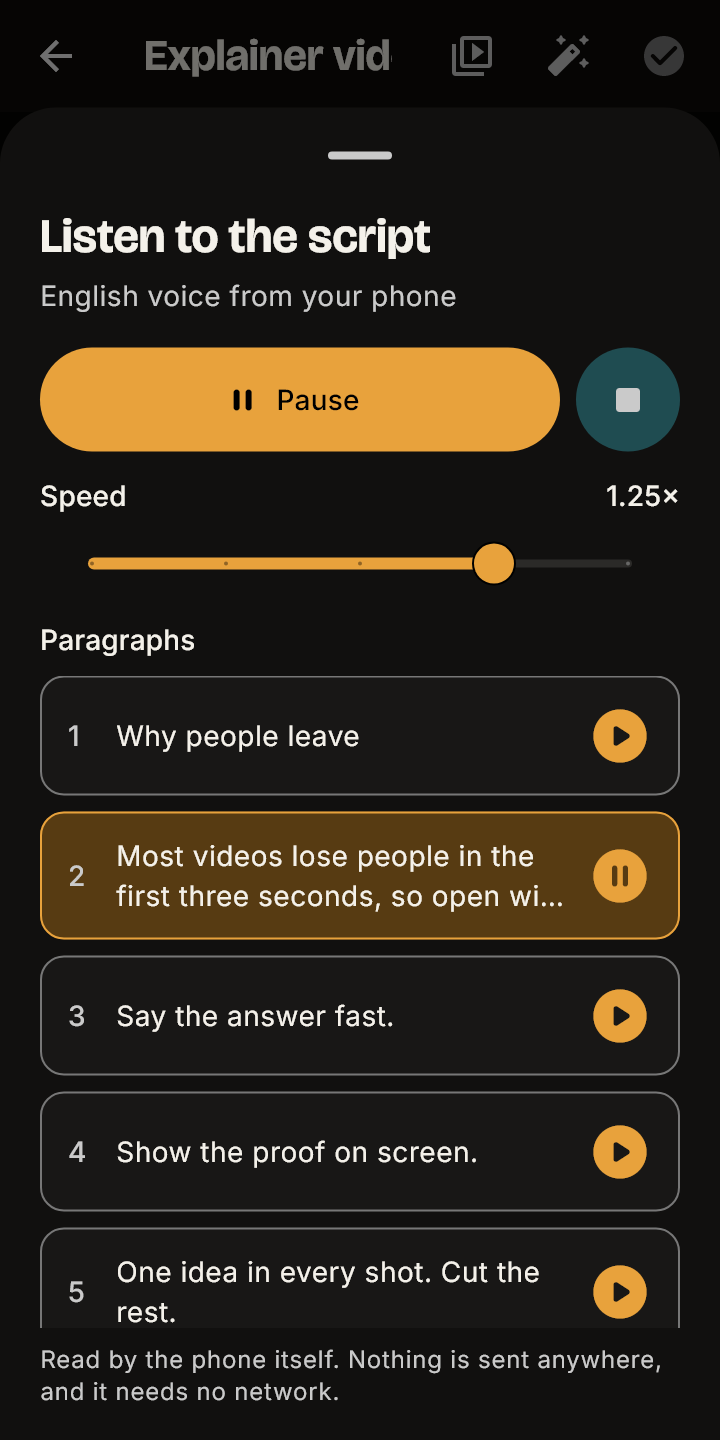
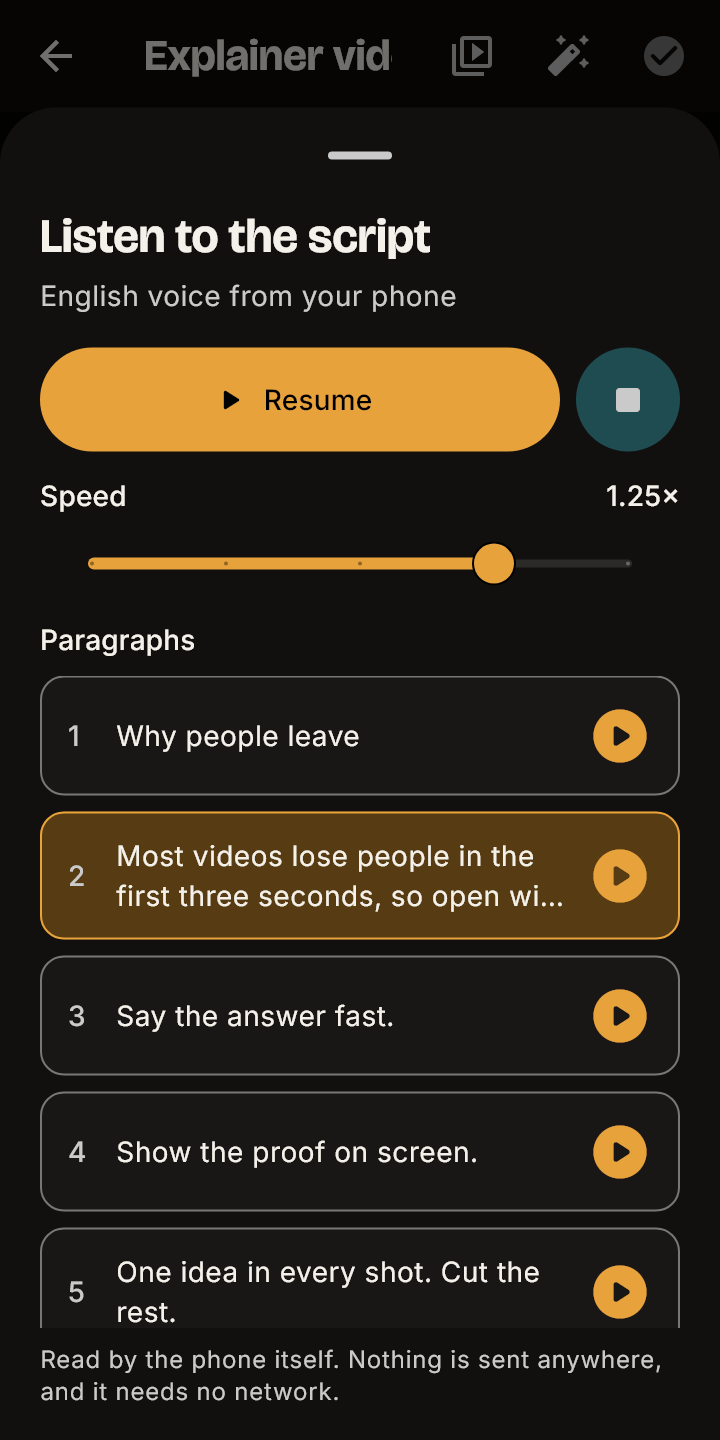
Listen to all reads the whole script. The play button on a paragraph reads just that paragraph.
Pause stops where you are, and Resume goes on from that word, not from the top.
Speed goes from half to one and a half times in steps. Changing it while it reads goes on from the same word at the new speed.
The voice follows the language of your script, English or Vietnamese. The marks of the editor (bold, headings, bullets) are not read out.
It uses a voice installed on your phone that works without a network. If there is none for your script’s language, the sheet says so and says where to add one.
The text goes nowhere: no server, no network, no AI, and no new permission.
The Listen button sits above Prompter on the script screen
Reading one paragraph a little faster; the others wait
Paused: Resume goes on from the word it stopped at
Version 0.4.76
Easier to read
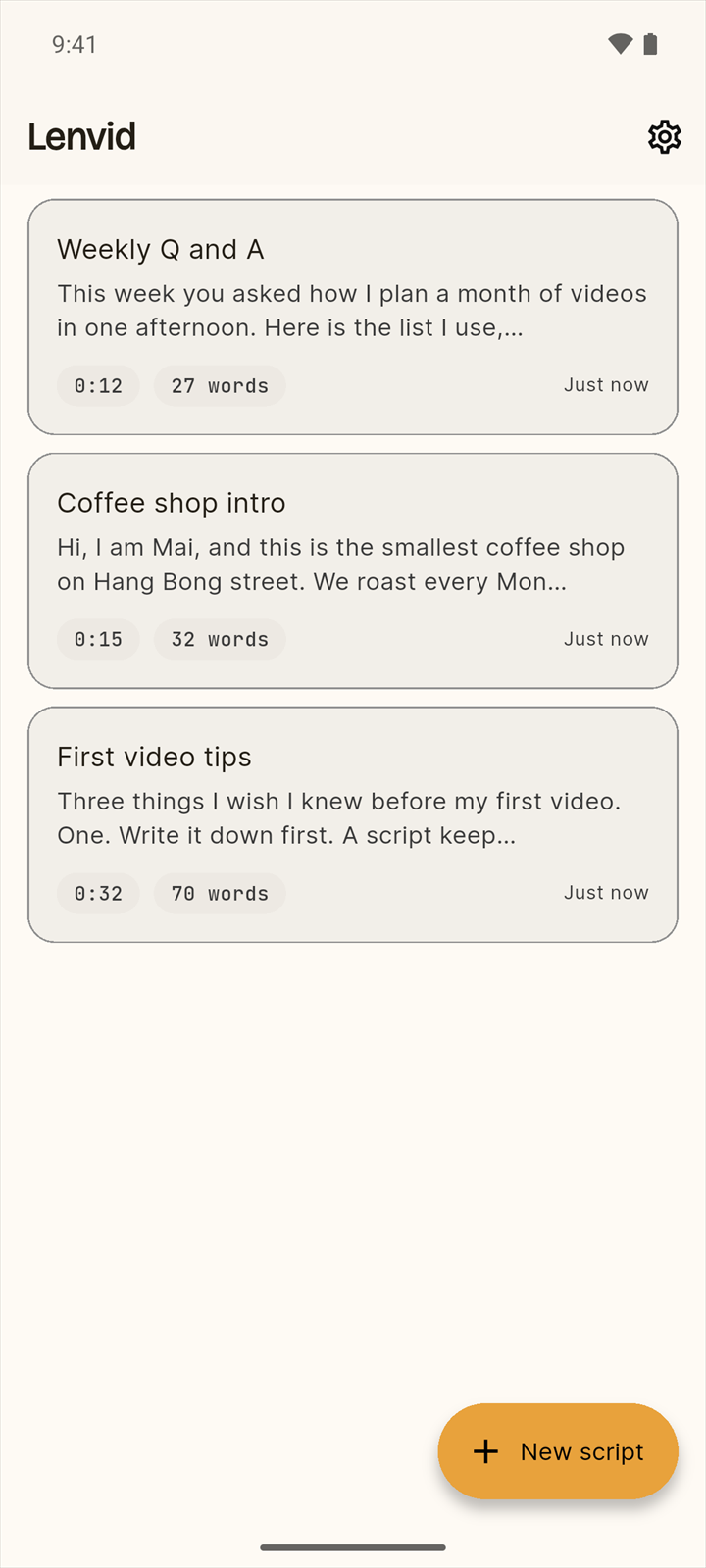
Amber labels and icons are deeper in light mode so they read clearly in daylight, and no text in the app is smaller than 12 points.
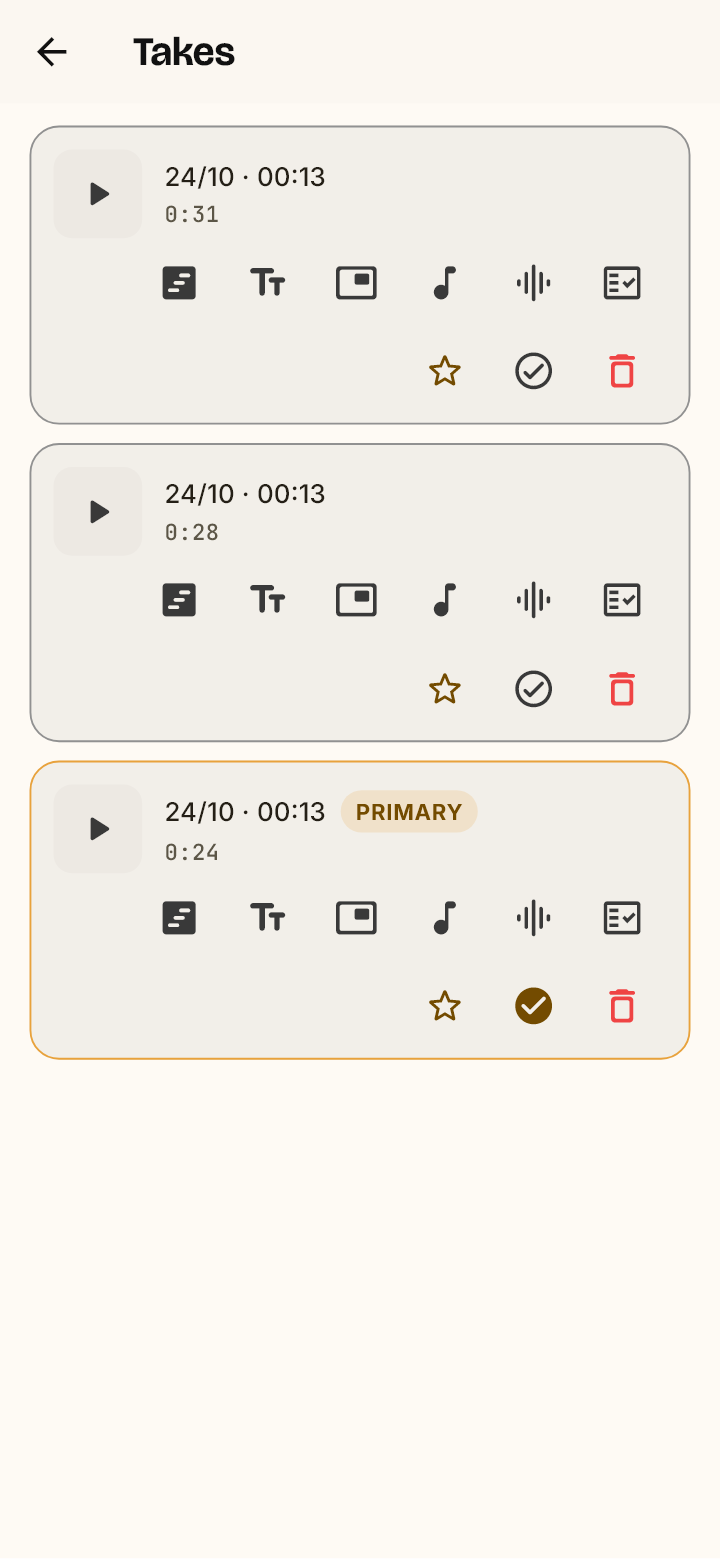
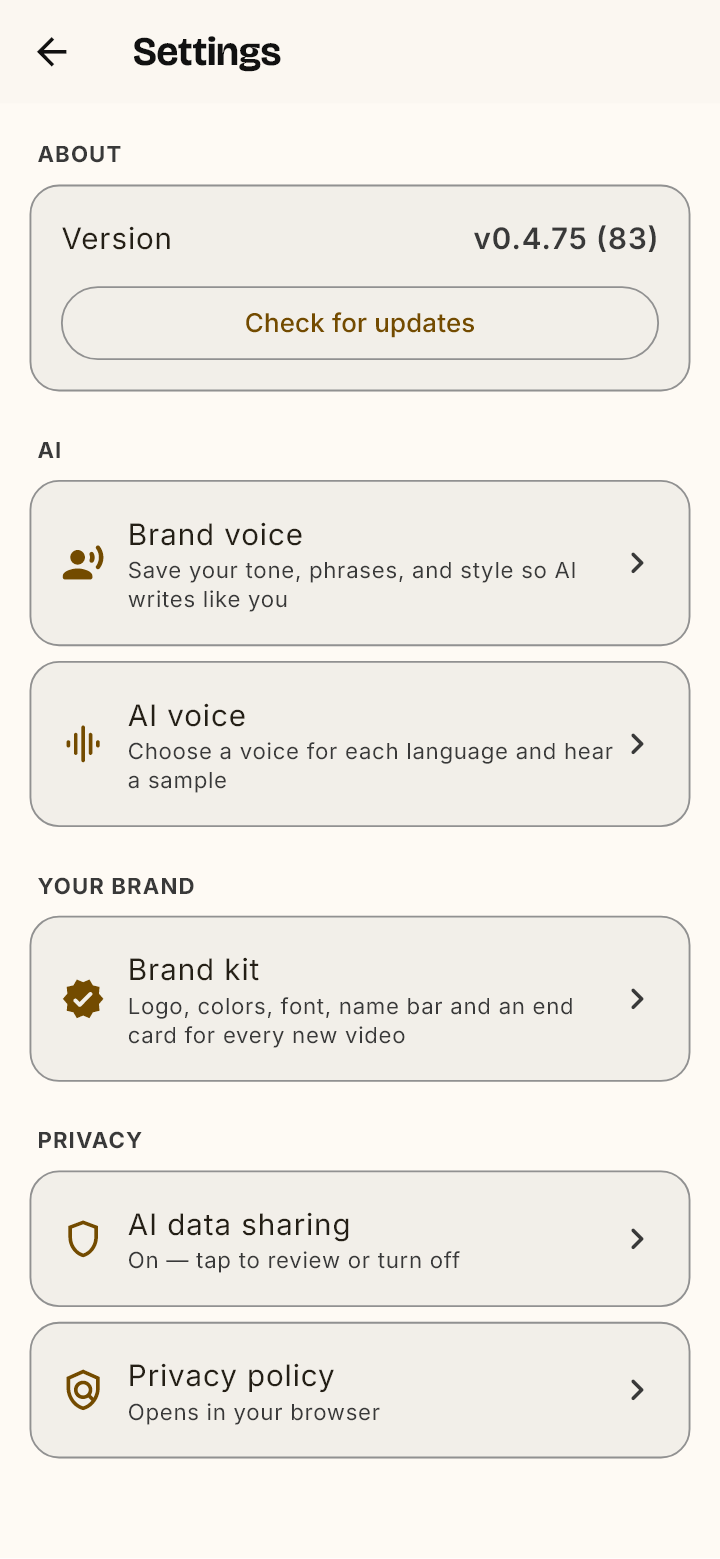
Amber text and icons, such as the tag on your primary take, the icons on the Takes screen and Check for updates, are a deeper amber in light mode. Dark mode is unchanged.
The smallest text in the app, such as how long ago a script was edited, the word count and the tags on takes, is bigger.
The Takes screen in light mode: the primary tag and the icons in deeper amber
Settings in light mode: Check for updates and the row icons in deeper amber
Version 0.4.74
Make a finished video from one take
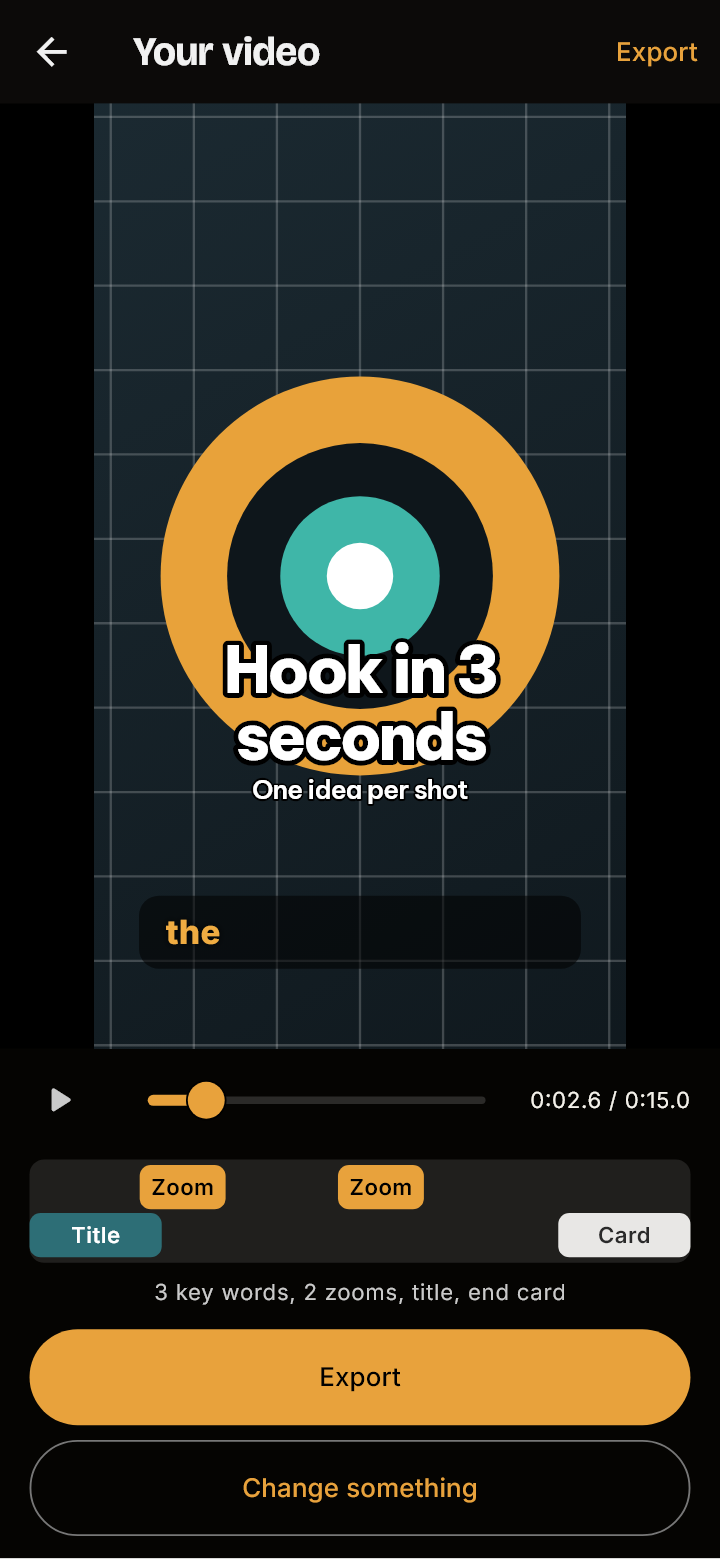
One button on the Takes screen turns a take into a finished video: you say what it should be, the AI plans the edit from the words you spoke, and Lenvid puts it together on your phone. Key words in your accent color, zooms on each new point, a title, an end card and music, then a few words to change anything.
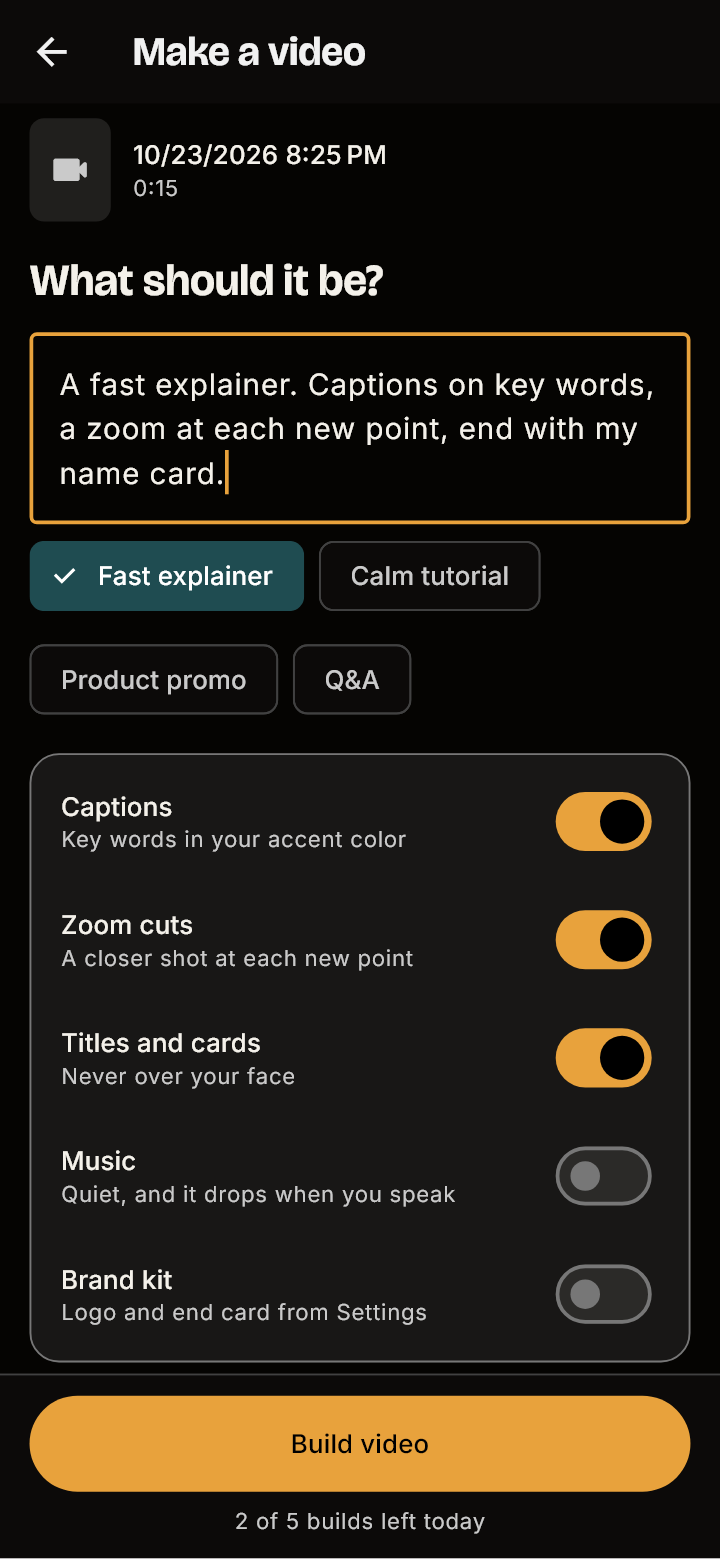
On the Takes screen, “Make a finished video” asks what the video should be. Write a few words, or start from a look: Fast explainer, Calm tutorial, Product promo or Q&A.
Five switches choose what gets built: captions with key words in your accent color, zoom cuts, titles and cards, music, and your brand kit.
The AI reads only the words of your take and when each was said, never the picture or the sound. Your video stays on your phone and is put together there.
It picks the words to stress, where to zoom closer, and what the title and the end card say. Zooms keep your face in the frame and a title or card never sits on it. When that is not possible the app leaves the part out and tells you.
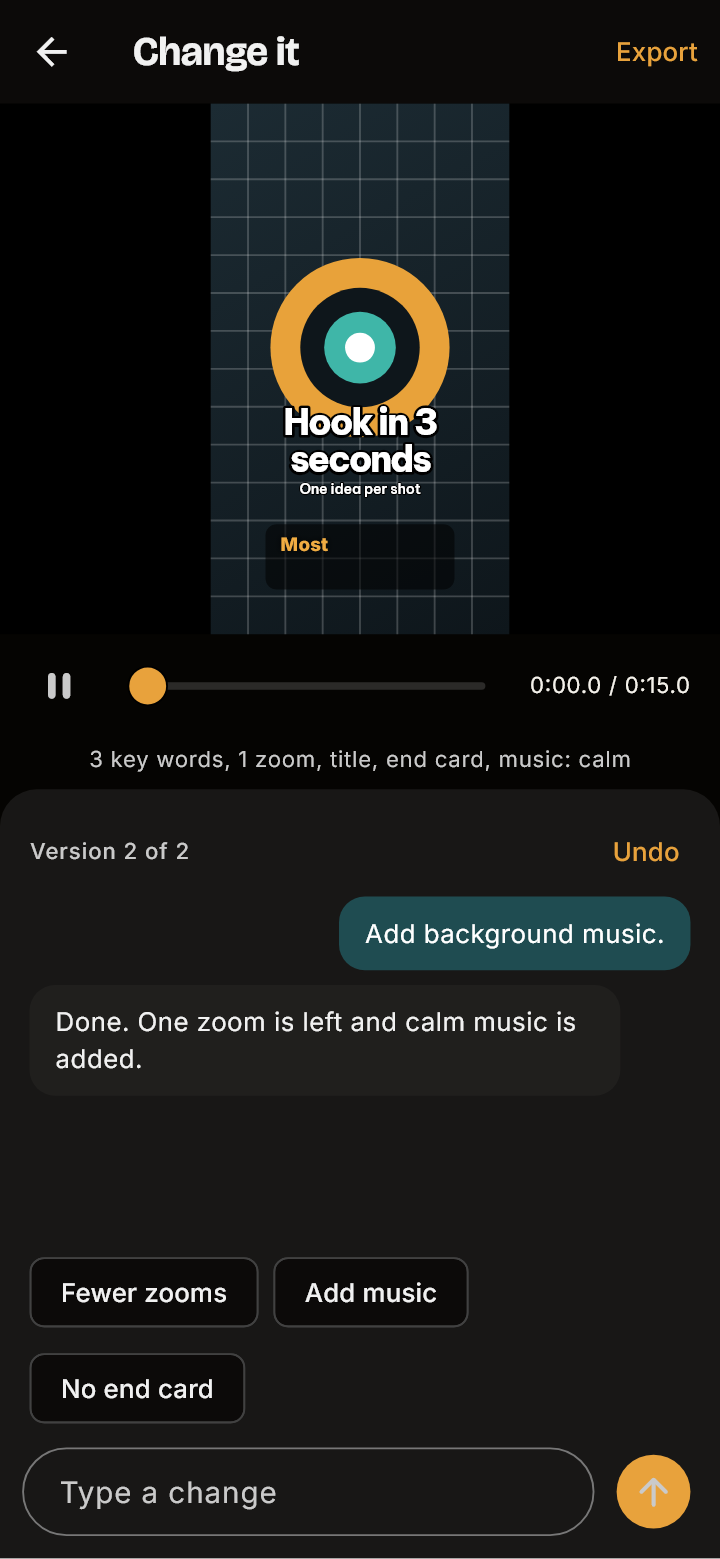
You see the result at once, with a bar that shows where the zooms, the title and the card fall. Change it with a few words: Fewer zooms, Add music, No end card, or your own. Undo goes back one version.
Each phone can build five times a day, and asking for a change counts as a build. Nothing is saved on the take until you export.
In the captions, a key word keeps your accent color for the rest of its line, on the video and in the exported file.
Say what the video should be, pick a look and the parts to build
The finished video plays at once: key words in color, a zoom, the title, and a bar of what was added
Change it with a few words; Undo goes back one version
Version 0.4.73
Edit your video right in Lenvid: timeline, text, second track, music and a finished export
After you record, you can now cut and arrange the take, put text, titles and cards on it, lay a second video over yourself while your voice goes on, add music, and export it in the size and shape you want.
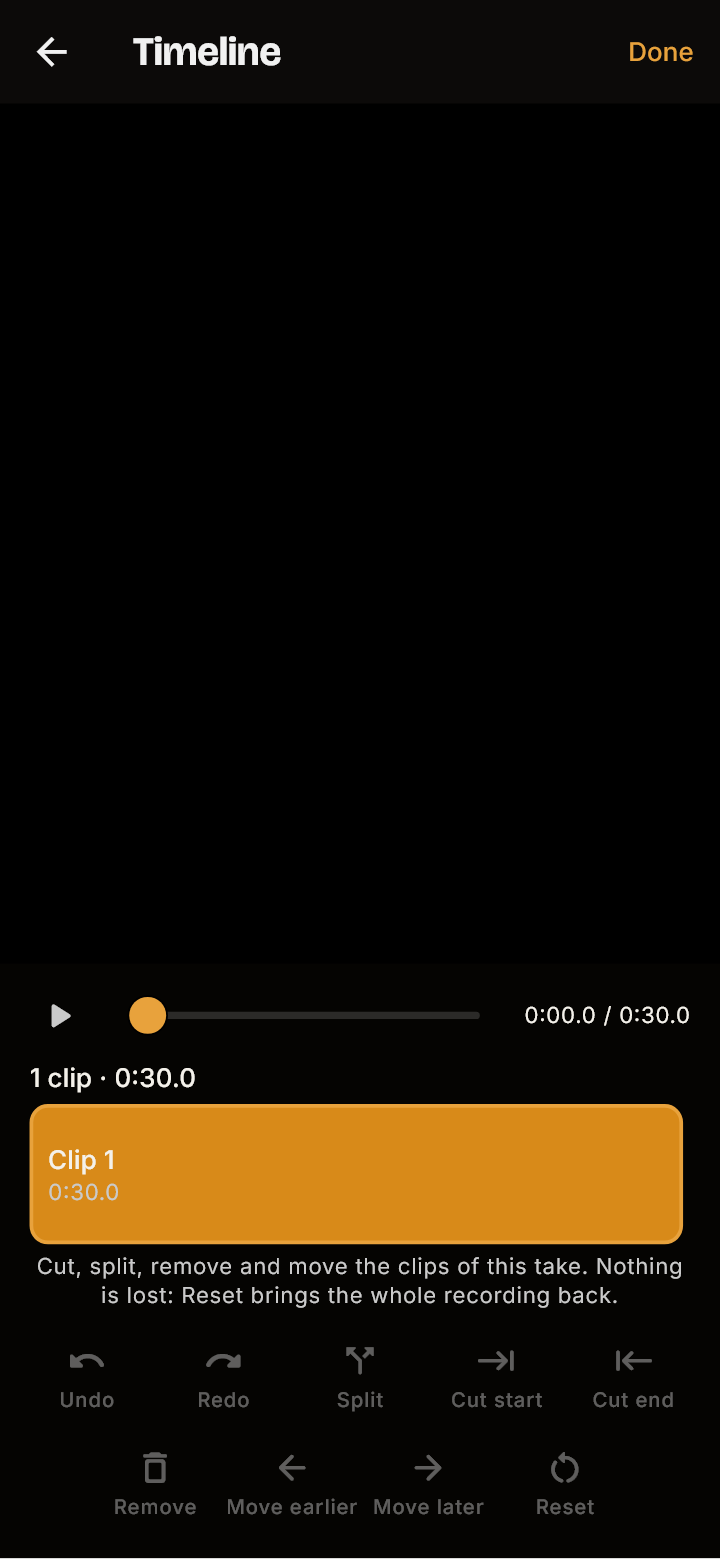
Timeline: cut the start or end of a clip, split it, remove a part, move clips around, and undo or redo as many steps as you need. Zoom in on one clip to bring the viewer closer.
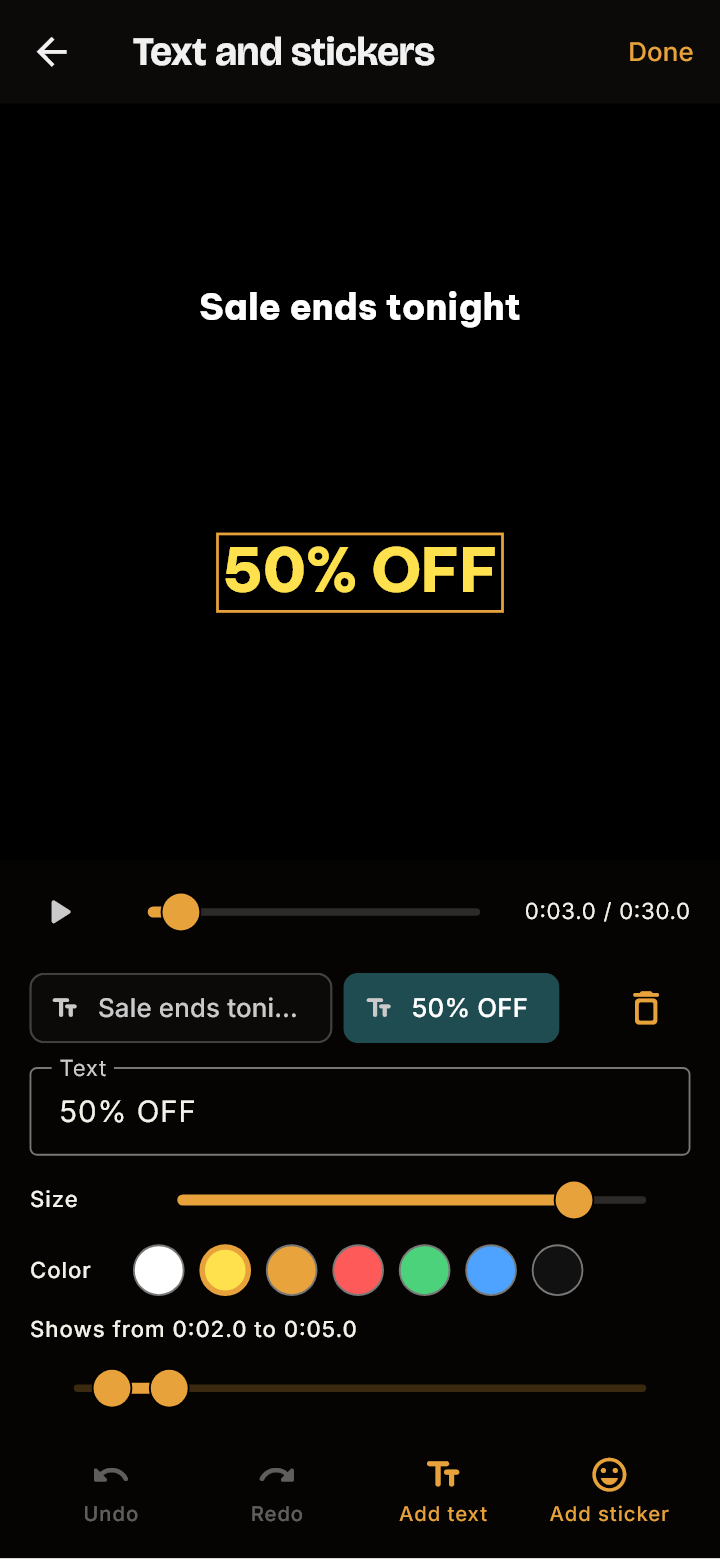
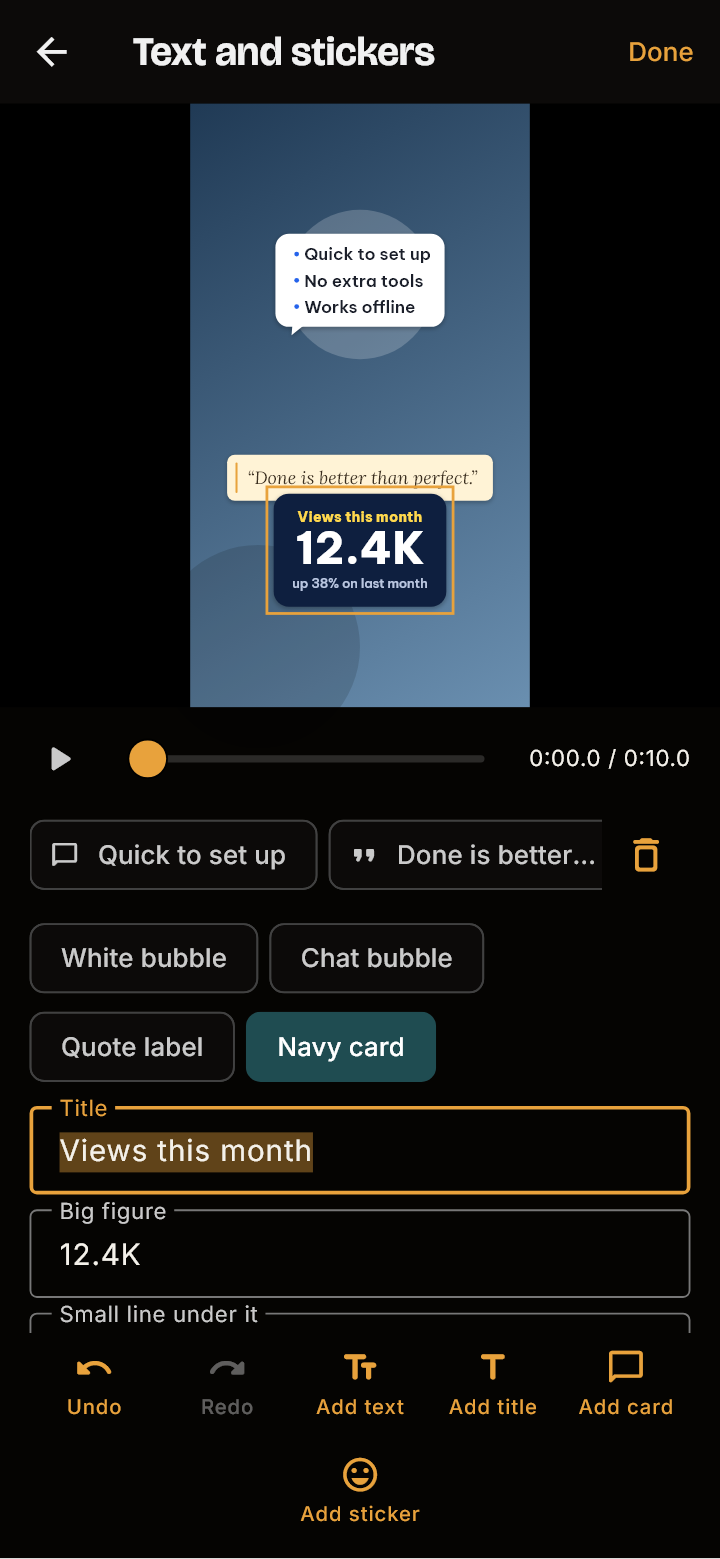
Text and stickers: add words, a big title with a line under it, stickers, and ready-made cards and bubbles (a chat bubble with a question, a quote label, a navy card). Drag them where you want, set when they show.
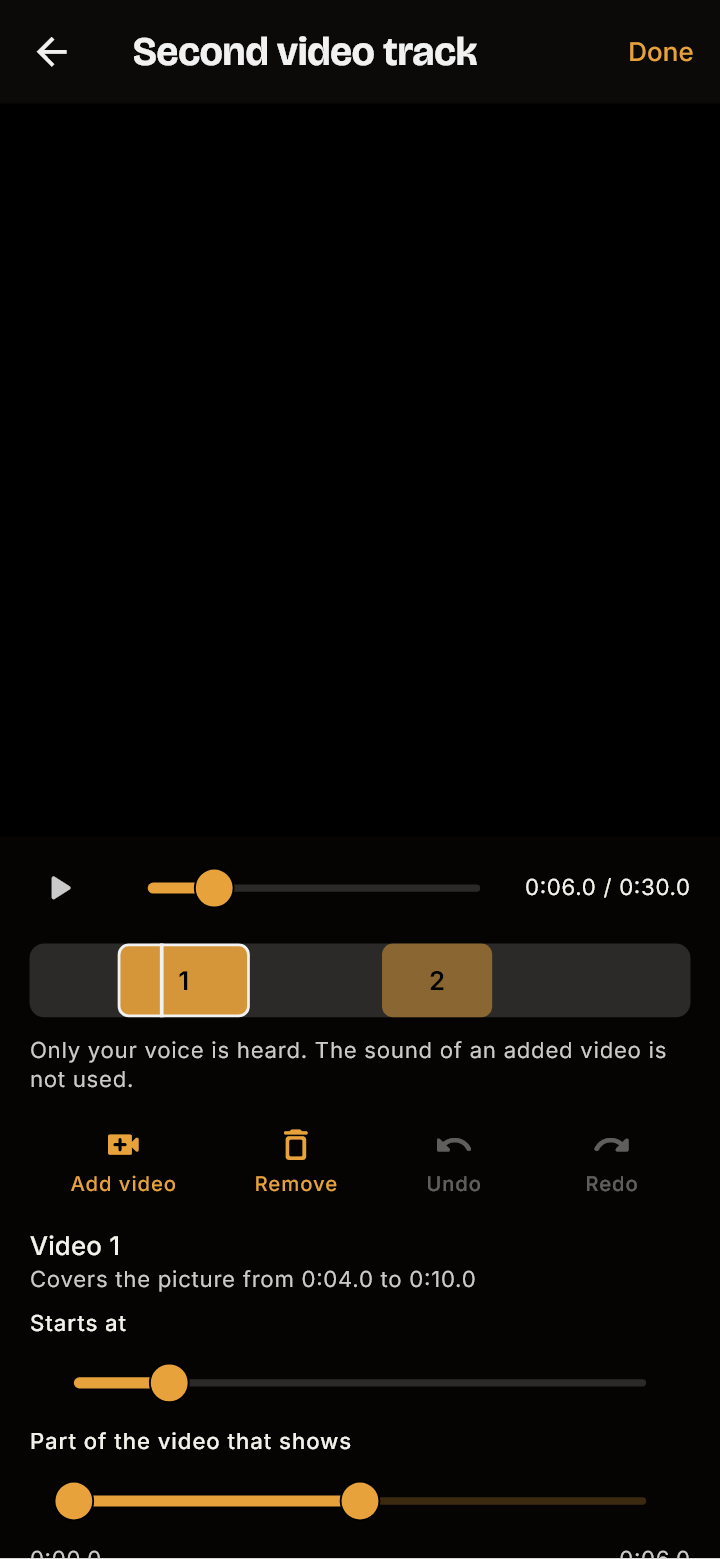
Second video track: lay a screen recording or an example over yourself for a while, full frame, while your voice goes on. Or put down a notebook grid page and write on it.
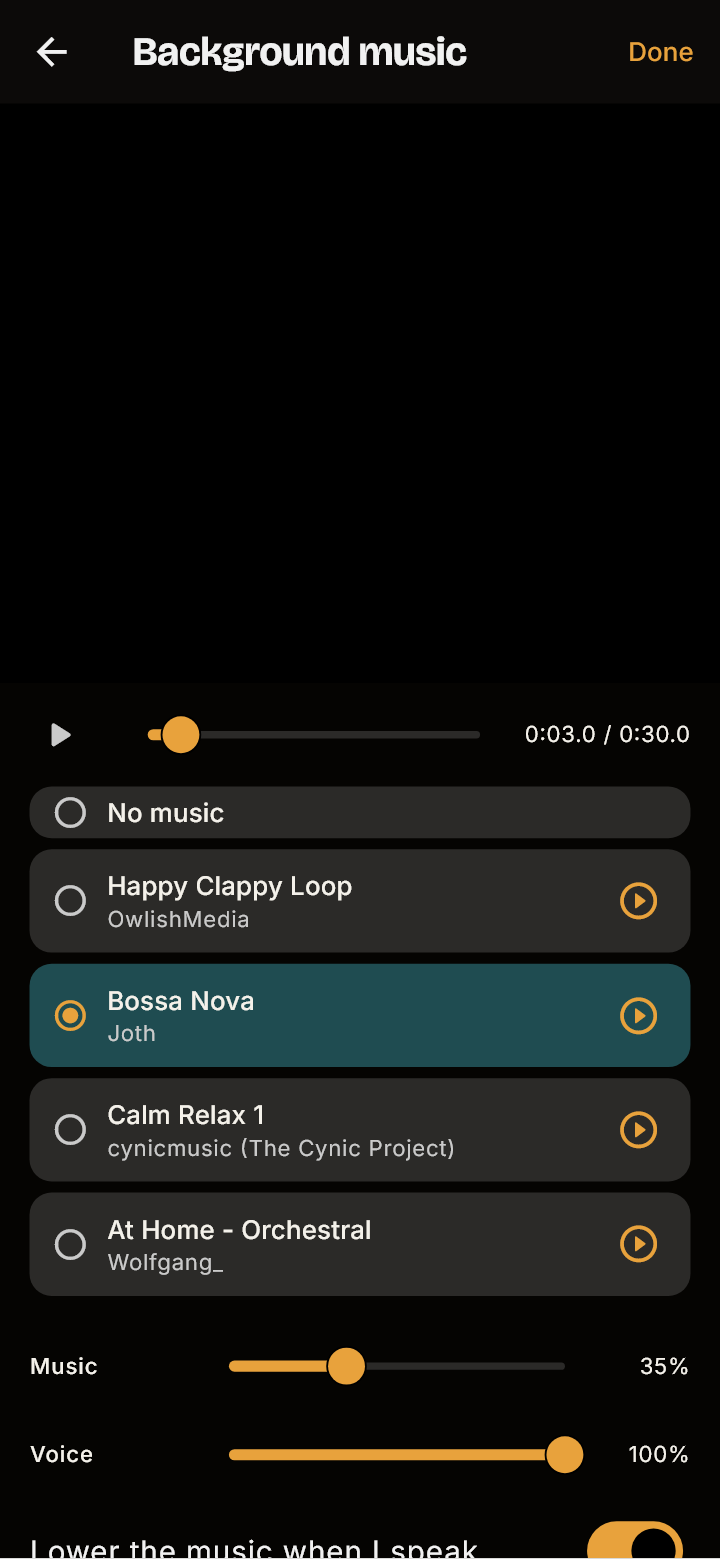
Background music: pick a track, set the music and voice levels, and let the music drop by itself while you speak.
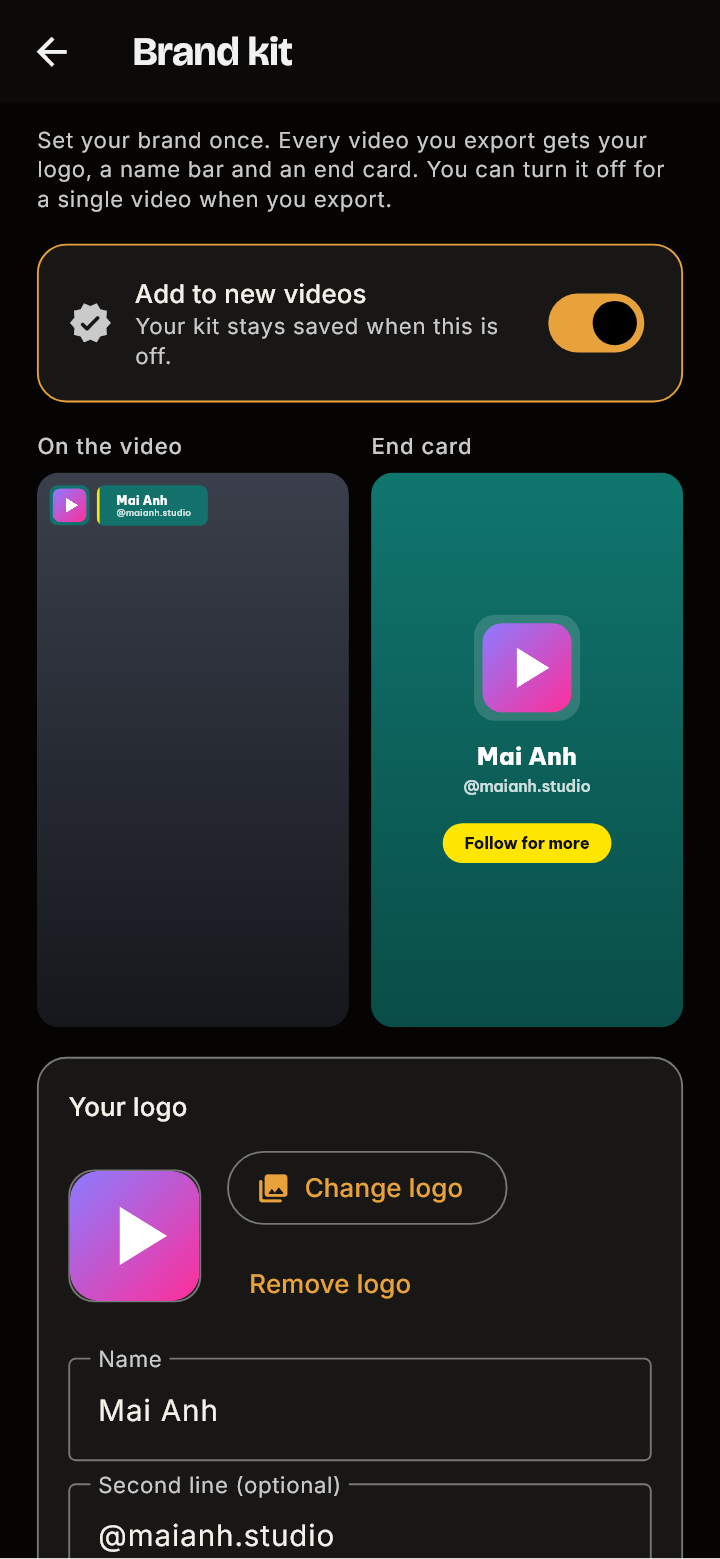
Brand kit: save your logo, colors, font and name once, and put them on every export, with an end card and a call to action.
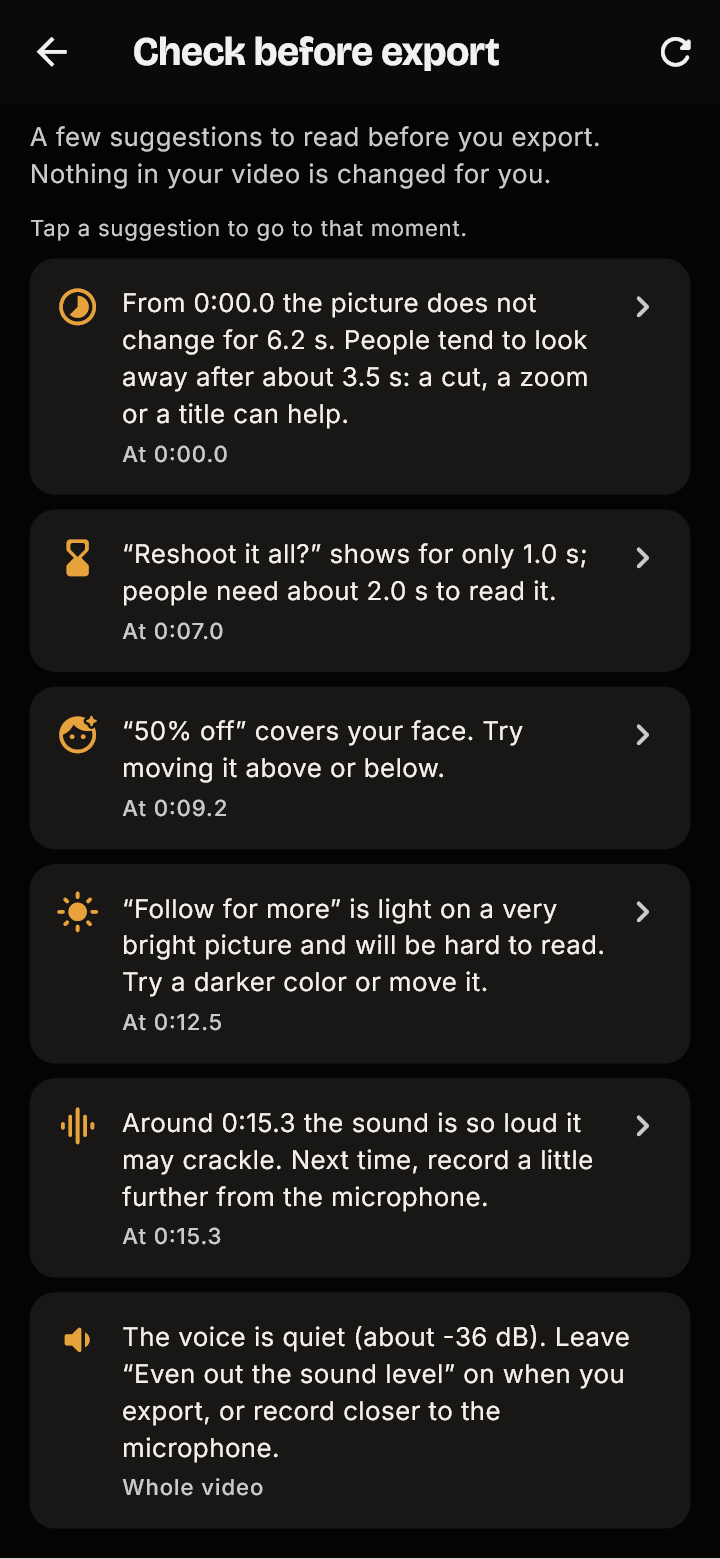
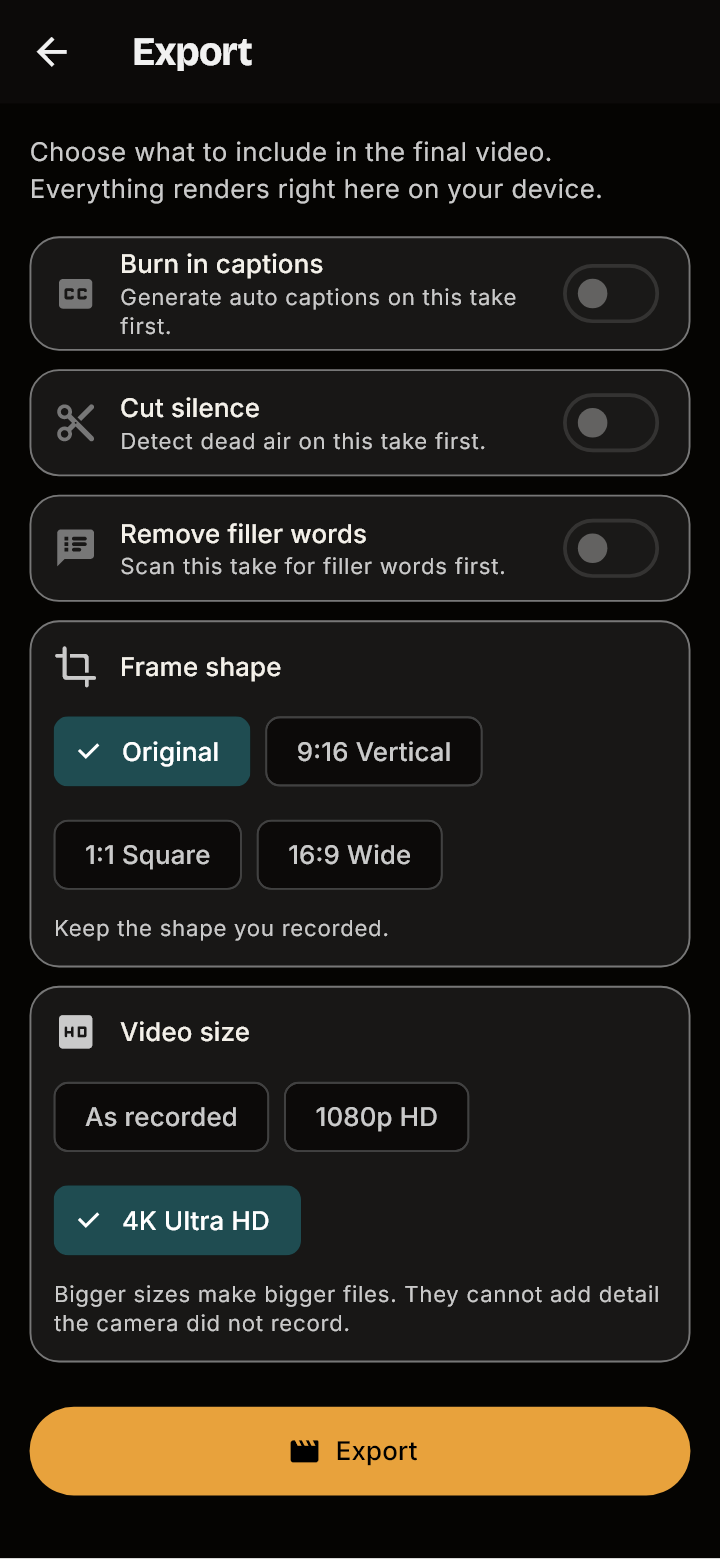
Export: choose 1080p or 4K where your phone can do it, keep the shape you filmed or reframe to 9:16, square or 16:9 with your face kept in frame, even out the sound level, and run a quick check before you export.
The timeline: clips of your take, cut, split, moved and zoomed
Text and stickers, dragged where you want them
Ready-made cards and bubbles, such as a chat bubble with a question
The second video track: a notebook grid page laid over the picture while your voice goes on
Background music with its own level, dropping while you speak
Your brand kit: logo, colors, font and name, saved once
A quick check before you export, with a tap to the moment each suggestion is about
Export size and frame shape
Version 0.4.72
Tap a caption to fix exactly what you see
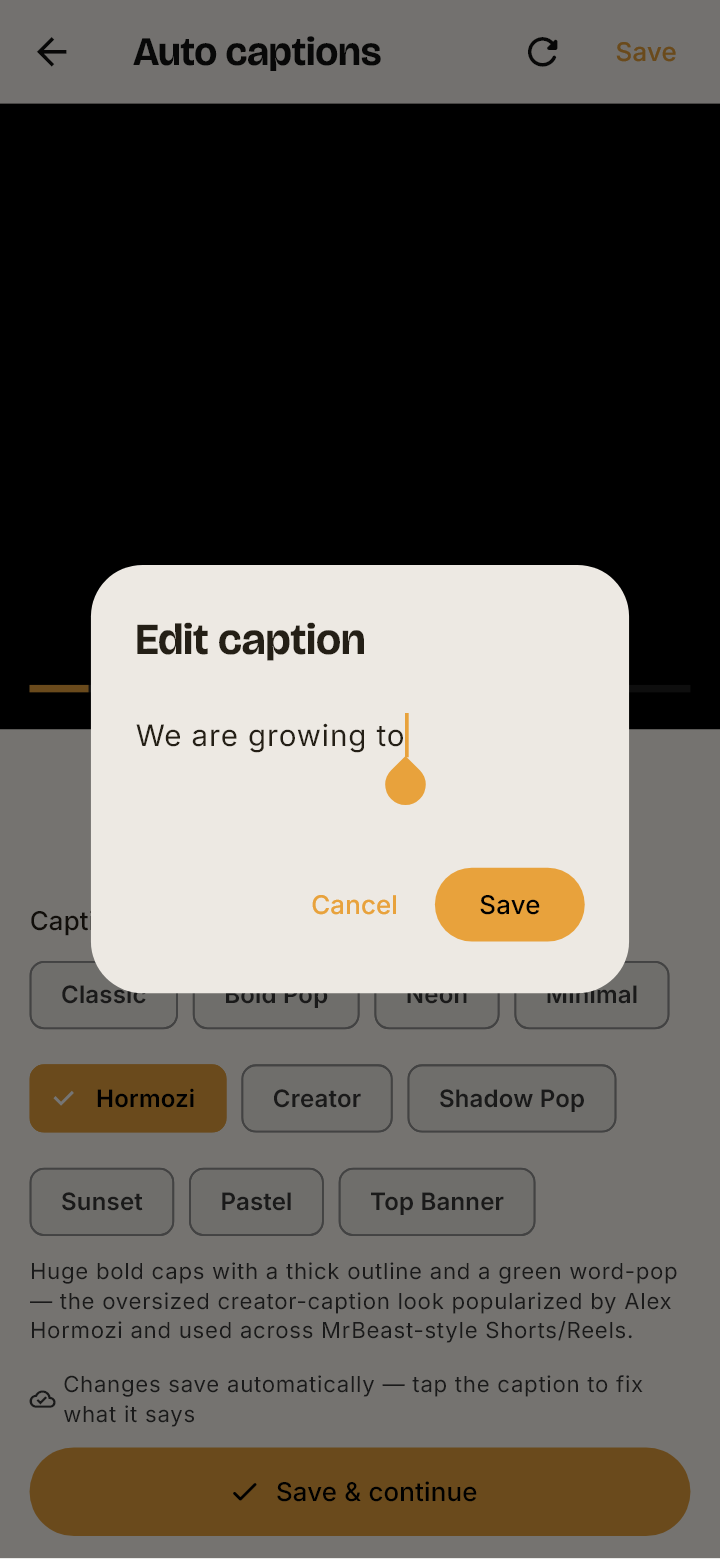
When you tap the caption on the video in Auto Captions, the box now opens with only the words on screen at that moment, not the whole sentence. Fix one word or rewrite the line: the words after it are not touched.
A caption shows its words one by one as they are spoken. If the screen shows “We are growing to” and the rest of the sentence has not been spoken yet, tapping it opens “We are growing to”, nothing more.
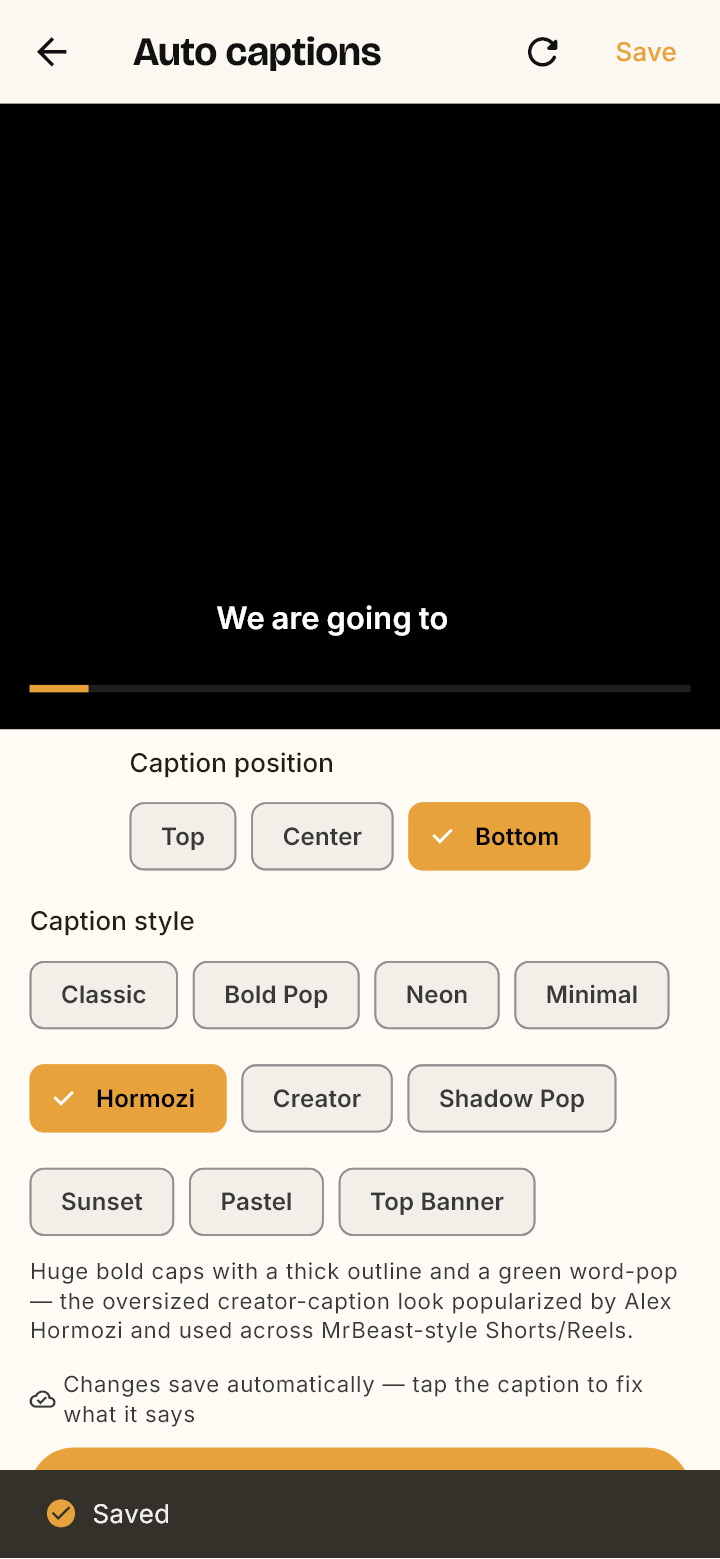
Change one word or the whole shown text, then Save. The words keep their place in time, so the captions do not drift, and the words after the ones you edited stay as they were.
The video waits while the box is open, so the text does not change under your fingers, and carries on when you close it.
What you saved is what the exported video shows.
The box is now called “Edit caption”, and the hints under the captions say the same.
Tapping the caption opens only the words on screen: “We are growing to”, not the whole sentence
Saved: the caption now reads “We are going to”, in the same place in time
Version 0.4.69
Silences, held sounds and quiet parts are cut
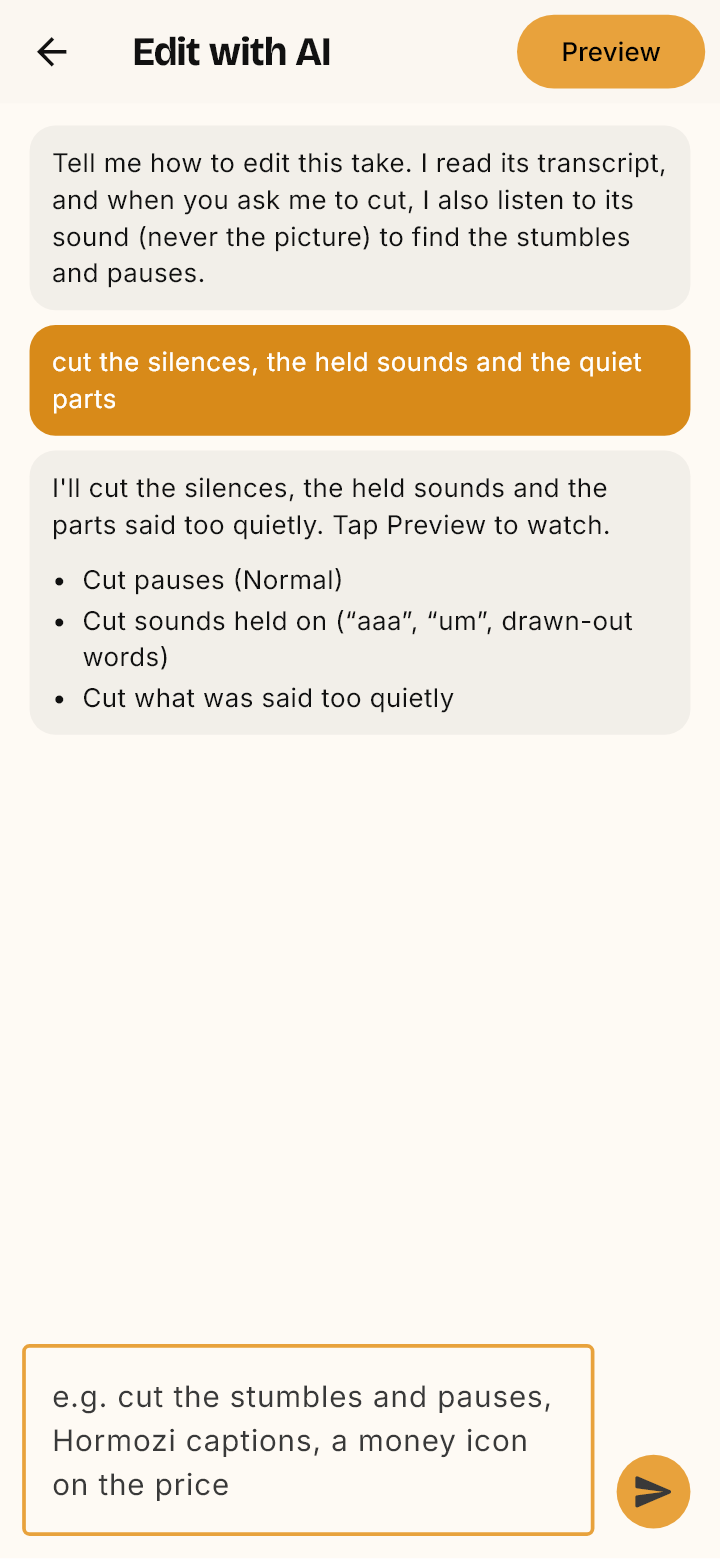
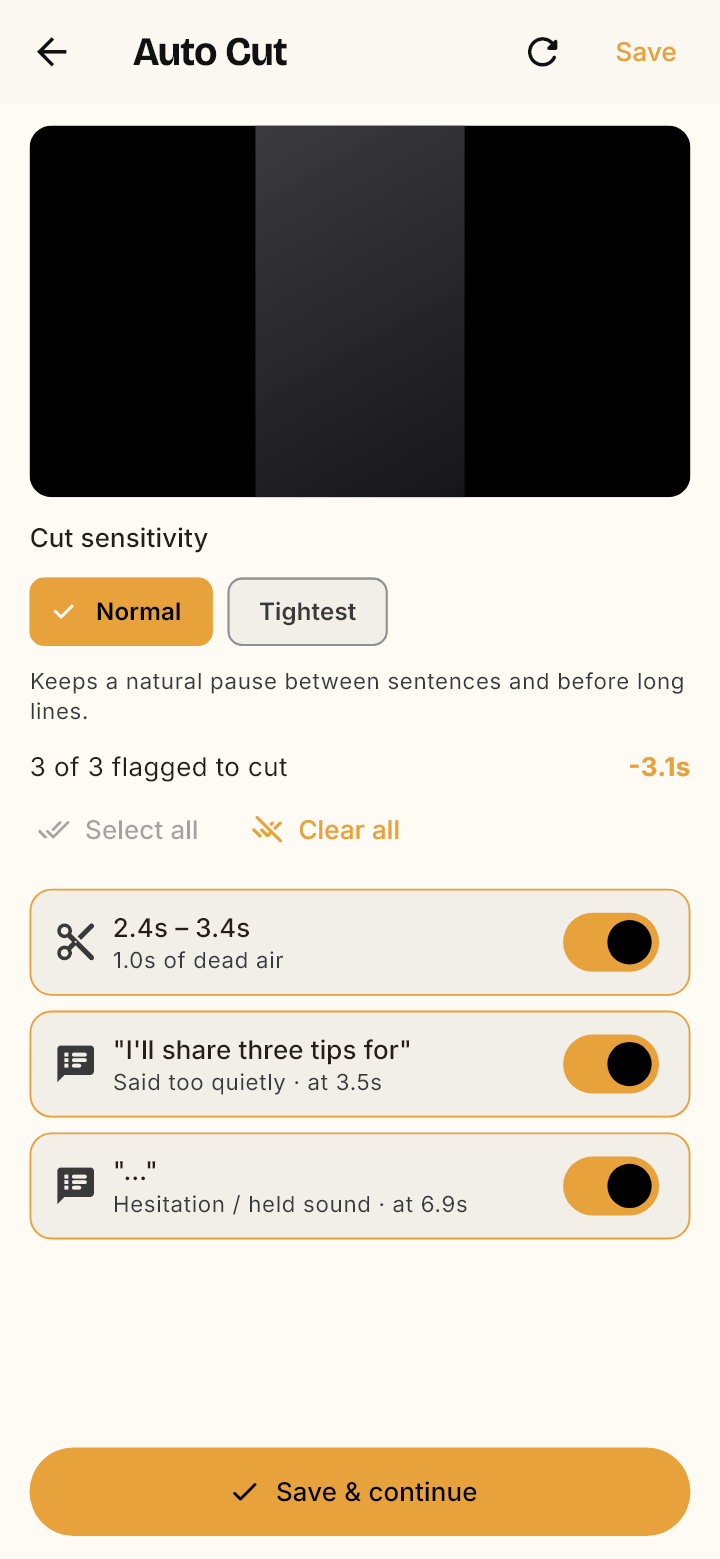
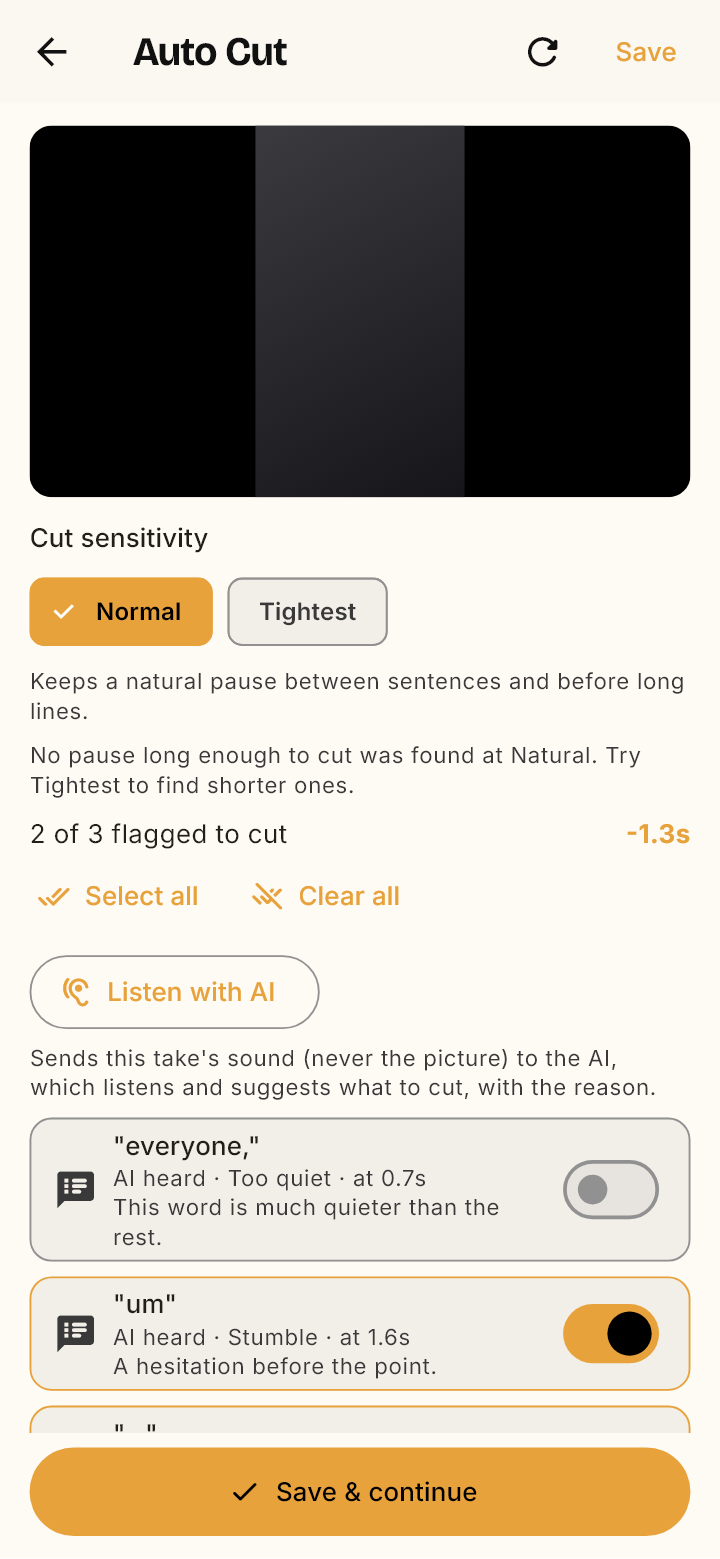
The take's own sound is now measured on the phone, so long silences, sounds held on (“aaa”, “um”, a drawn-out word) and parts said too quietly are all found and cut, in Auto Cut and when you ask Edit with AI.
A deliberate silence is cut even when the transcript runs a word over it. Before, such a silence was kept.
Sounds held on are found anywhere, also when the transcript wrote them as a word. A word drawn out keeps its start and loses the drawn part.
New: parts said much more quietly than the rest are listed as “Said too quietly” and ticked to cut. A recording that is quiet throughout is left alone.
In Edit with AI, “cut the silences, the held sounds and the quiet parts” works at once, and still works when the AI is busy: the phone finds them and you can Preview.
When the AI listens to a take, what it hears as too quiet is now cut too.
Asking Edit with AI to cut the silences, the held sounds and the quiet parts
Auto Cut: a silence, a part said too quietly and a held sound, all ticked to cut
Version 0.4.70
Measured cuts, checked on a real voice, never past half the take
The silence, held-sound and quiet-speech measures of 0.4.69 were checked on a real recorded voice and made steadier, and together they can no longer cut more than half of a take by default.
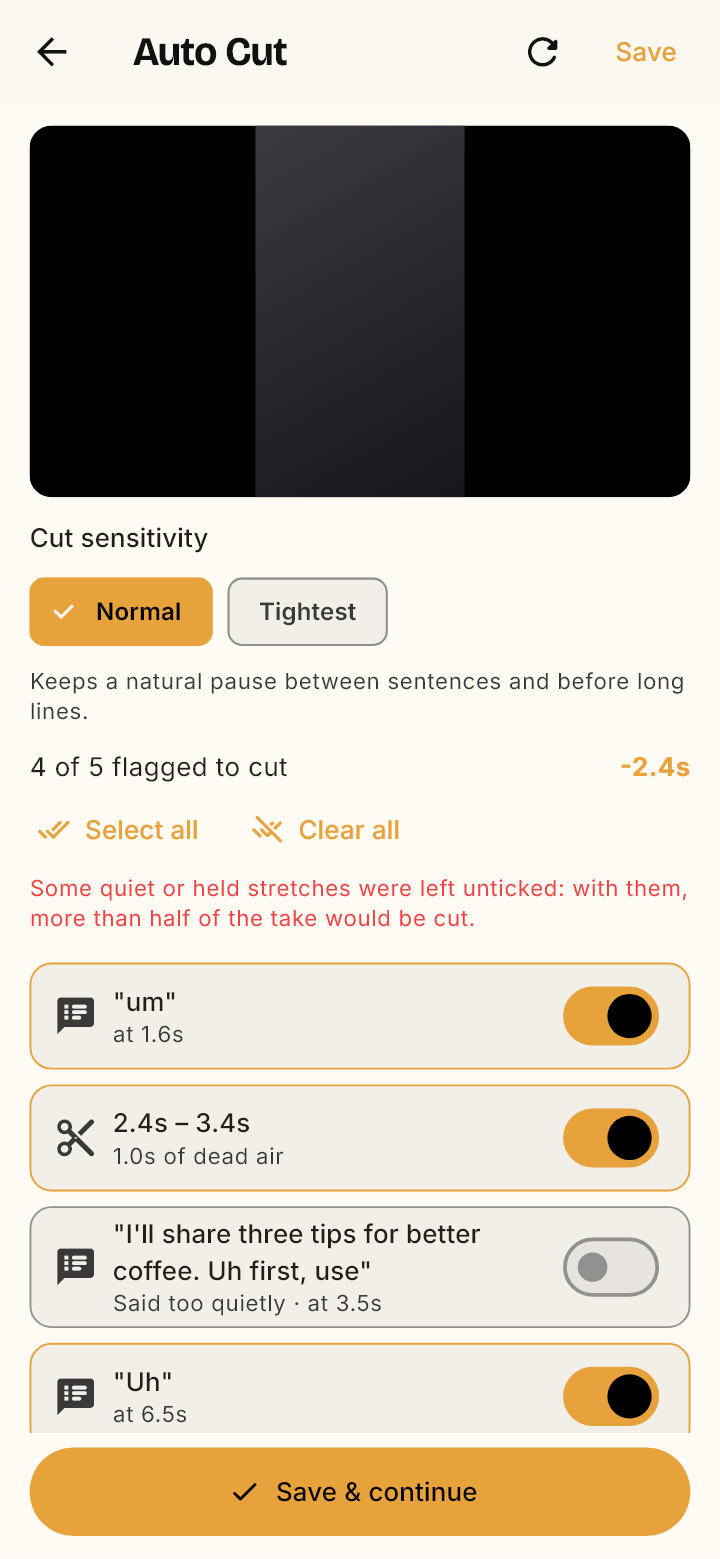
If the cuts found would remove more than half of the take, the quiet parts are left unticked first, then the held sounds, and Auto Cut or the preview says so. In Auto Cut you can tick them again yourself; Auto Cut then warns you.
The room's own noise is no longer taken for quiet speech inside a silence, and the fading end of a sentence is not taken for it either.
A word the transcript runs over a silence no longer hides a quiet sentence next to it.
“Cut the hold music” or “trim the intro” no longer adds a cut of held sounds.
On a short take the quiet part would make the cuts more than half: it is left unticked, and Auto Cut says why
Version 0.4.71
What you ask for in the chat is always cut
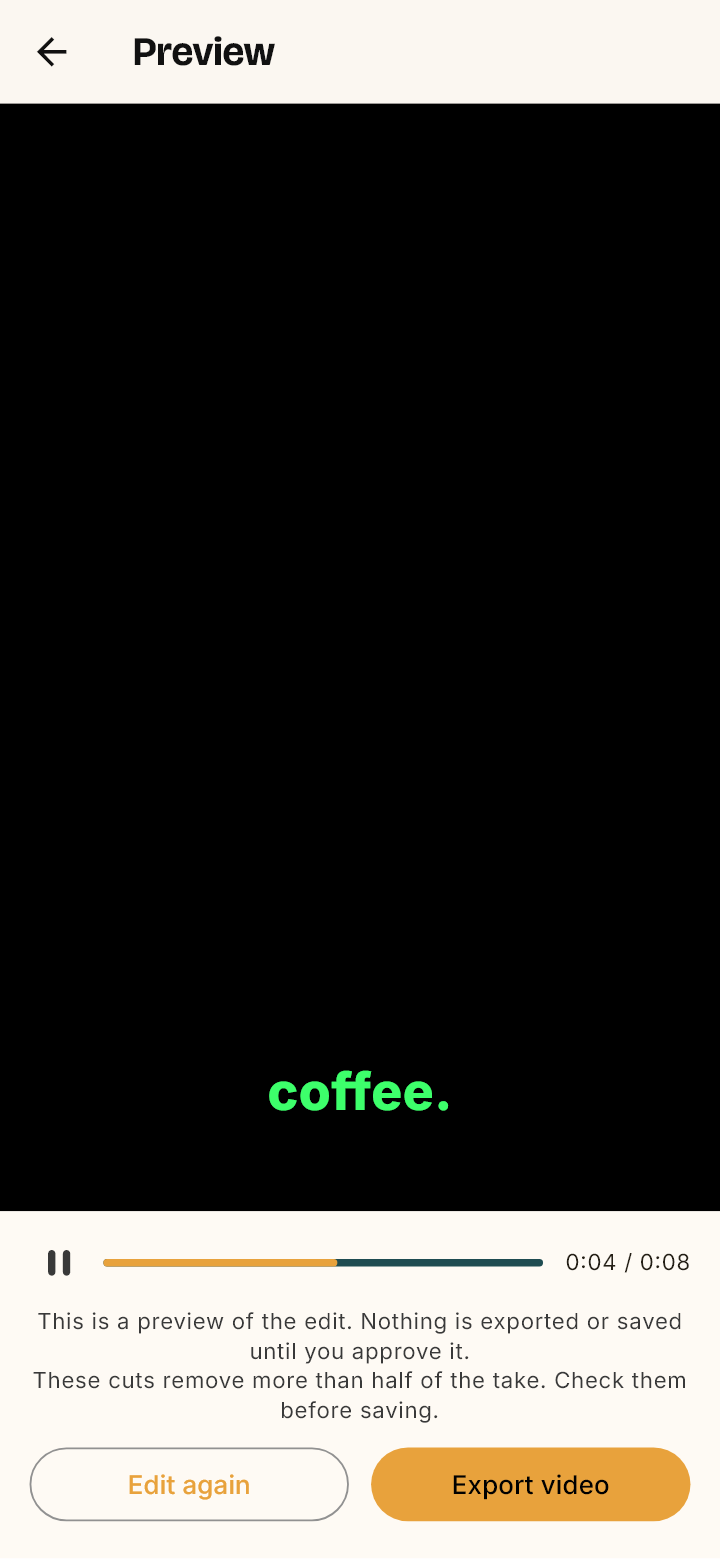
The half-the-take limit of 0.4.70 now only holds back the cuts the app ticks by itself. What you ask Edit with AI to cut is cut, even on a short take, and the preview warns when that is more than half of it.
“Cut the silences, the held sounds and the quiet parts” on a short take cuts all three, where 0.4.70 left the quiet part in.
When the cuts come to more than half of the take, the preview says so, so you can look before you export.
Cuts you did not ask for in the chat (found earlier by Auto Cut) are still held to the limit, quiet parts first.
Auto Cut no longer unticks anything when the pause scan finishes after you have chosen; it only warns.
The preview of an edit that cuts more than half of the take, as asked: it says so
Version 0.4.66
Edit with AI, thinking sounds cut, and many fixes
You can now ask the AI to edit a take for you, Auto Cut also removes the sounds you make while thinking, and a long list of things that went wrong on iPhone has been fixed.
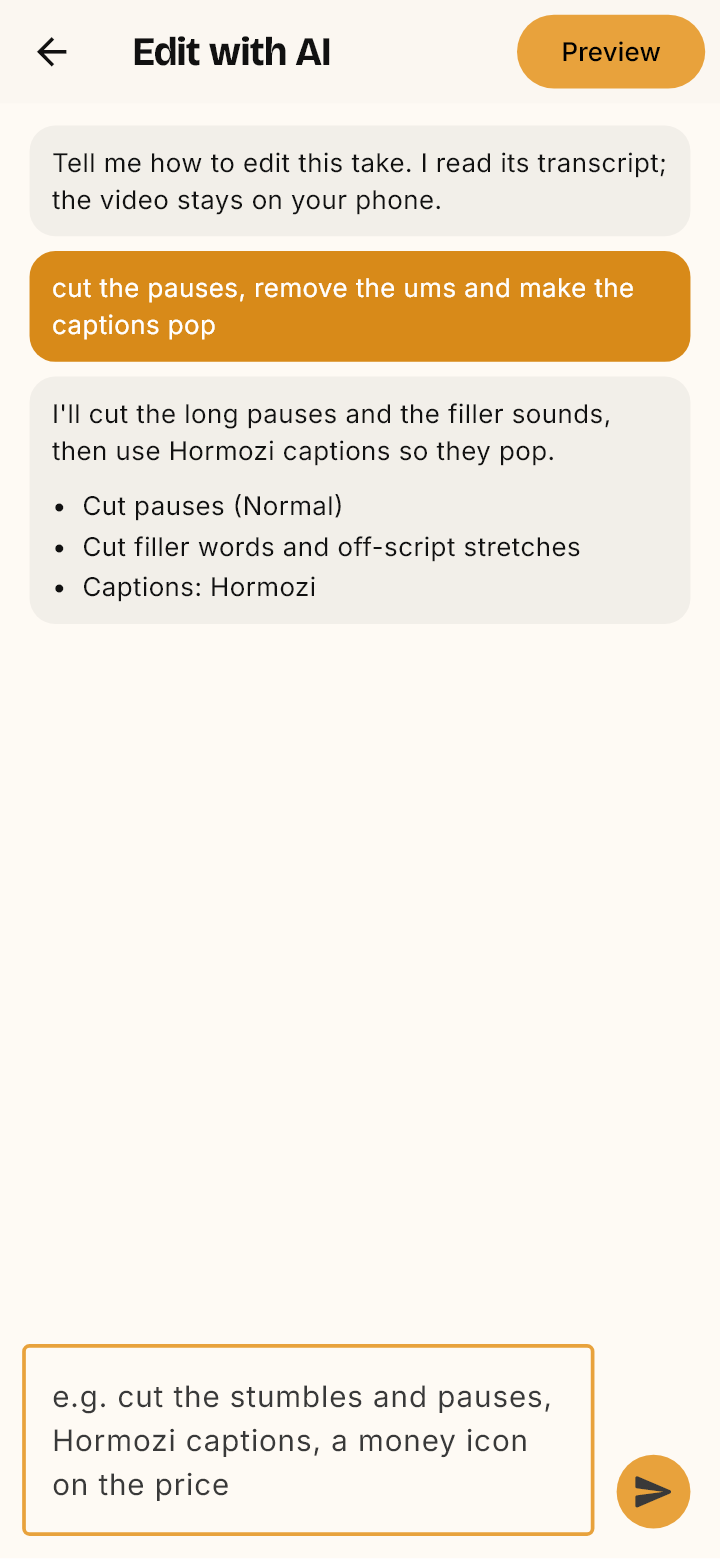
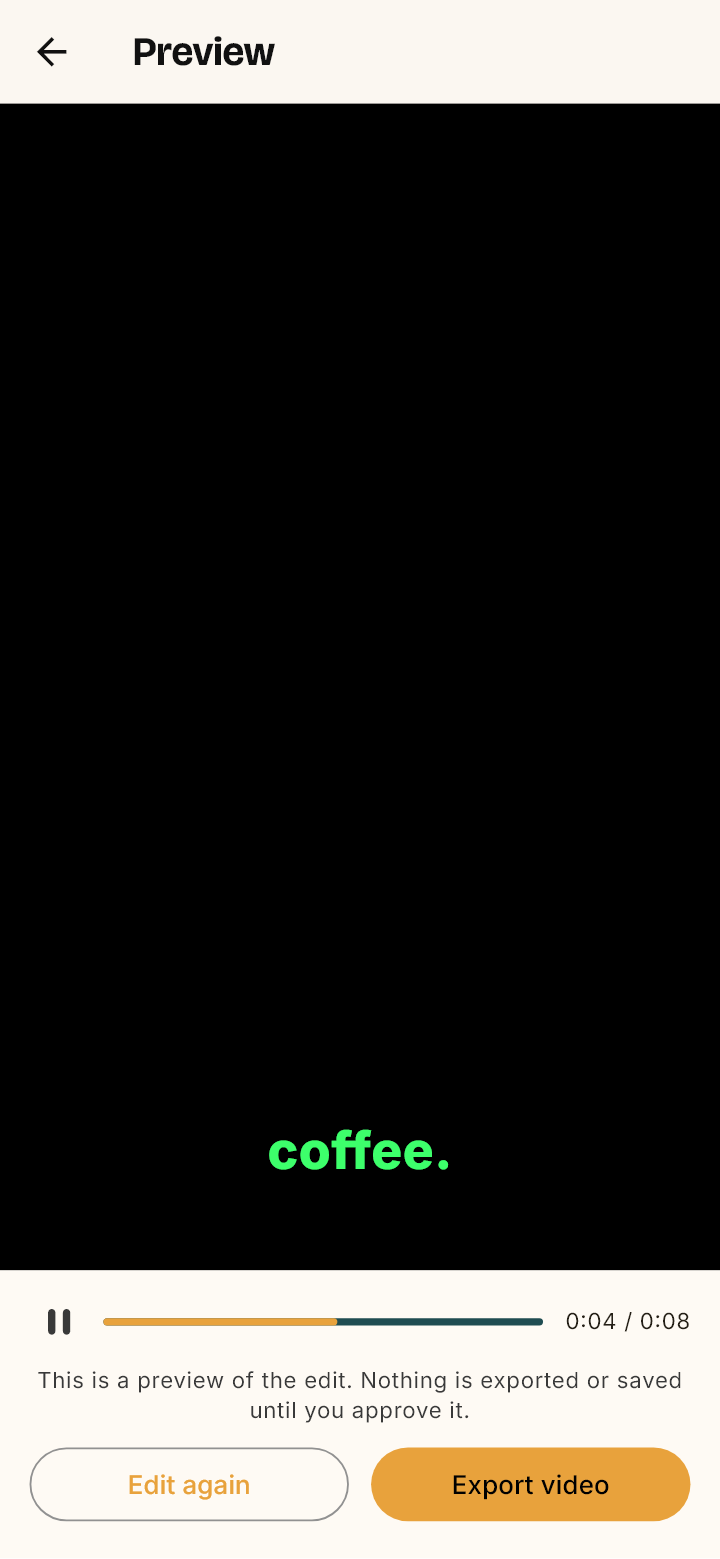
New: Edit with AI. Tell the AI how to edit a take, for example “cut the pauses and make the captions pop”. It plans the edit and you tap Preview to watch the edited video at once. Nothing is exported or saved until you approve it: Export video renders it and saves it to Photos, and if you want changes, tap Edit again and keep talking to the AI.
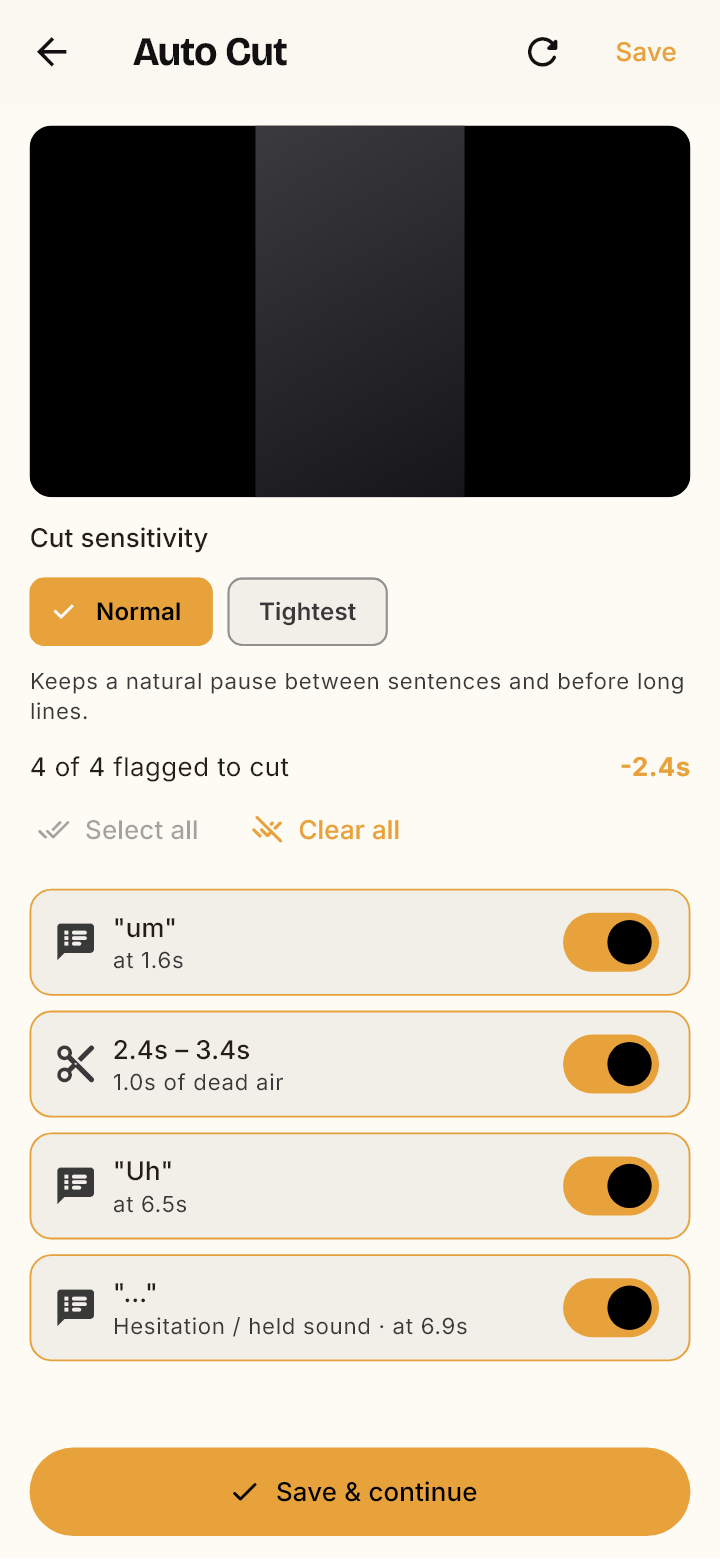
Auto Cut now finds thinking sounds too: “ừm”, “ờ”, and a sound you hold on while you think. They are listed as “Hesitation / held sound”, each with its own switch, next to the pauses and filler words like “um” it already found. A real “ừ” that means “yes” is left alone.
Auto Cut has Select all and Clear all, and what you choose there is what Export cuts.
Captions use the exact words and punctuation of your script, and words you said off-script are marked. You can edit a whole caption line, and Save & continue takes you to the next step.
A take with no sound no longer gets made-up captions: Lenvid tells you the take is silent right after you record it, so you can record it again.
Fixed black videos after an app update, an export error, and saving to Photos when your iPhone only lets apps add photos.
Fixed the home screen that could keep loading forever, and takes that were recorded without sound on iPhone.
When the AI has a problem, Lenvid now says so in plain words, and it tries again by itself when the AI is busy.
Edit with AI: ask in your own words, read the plan, then tap Preview
Preview plays the edited video, with the pauses skipped and the captions on, before anything is exported
Auto Cut lists a sound held on while thinking under its own label, next to pauses and filler words
Version 0.4.67
The AI now listens to your take
Auto Cut and Edit with AI can now send a take's sound to the AI, which listens for stumbles, long pauses, lost focus and words said wrong, and suggests what to cut, with the reason.
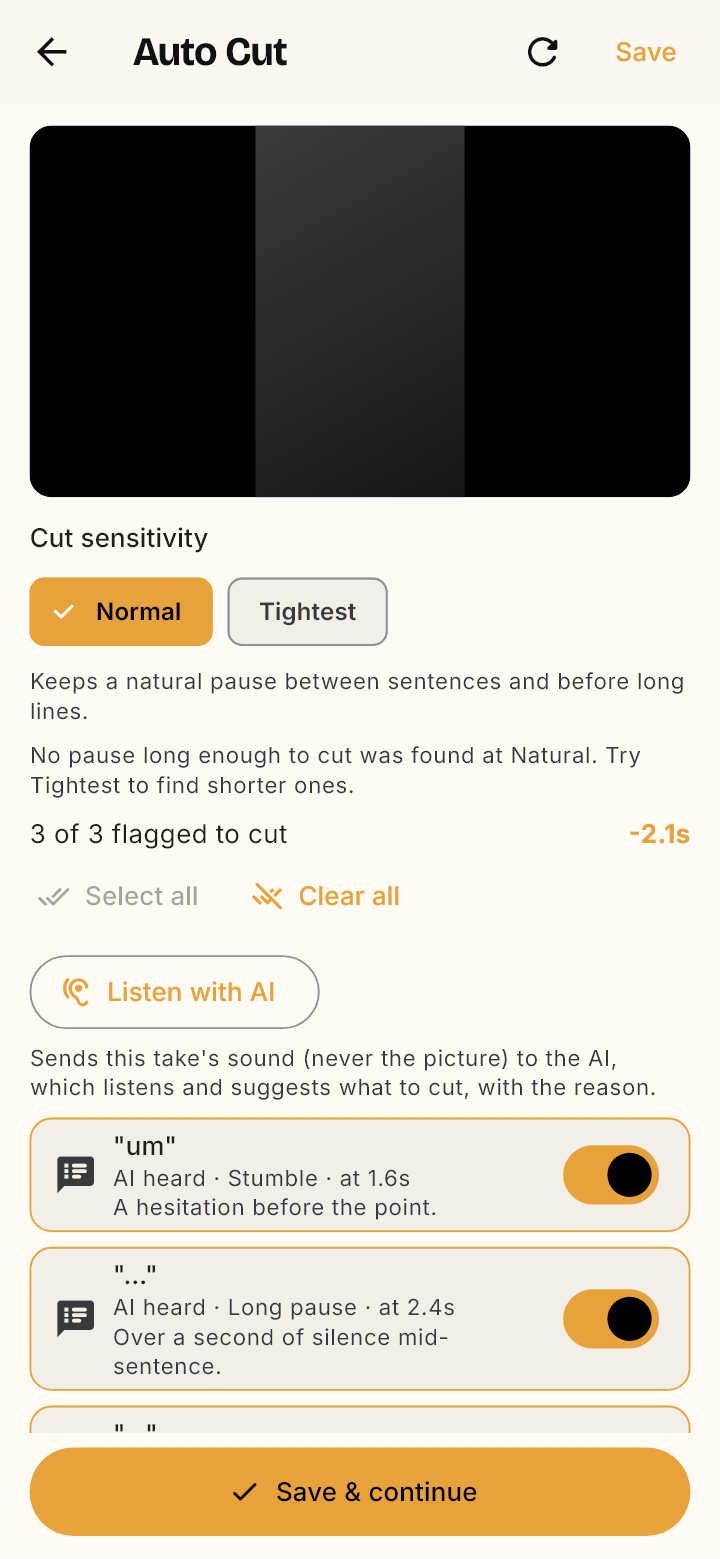
New in Auto Cut: Listen with AI. The AI listens to the take (its sound only, never the picture) and suggests stretches to cut, each with a reason: stumble, wrong words, said again, long pause, lost focus or too quiet.
Each suggestion is listed as “AI heard” with a short note and its own switch. Preview and Export video use them like any other cut.
Edit with AI listens too when you ask it to cut, and can cut what it heard. It sends the sound only when you ask for a cut.
Careful by default: a word you read from the script is only cut when you said it again right after, “too quiet” spots are listed but not ticked, and if the AI wants to cut too much of the take, nothing is ticked.
The AI data screen and the privacy policy now name Listen with AI. You are asked to agree once more, because Edit with AI may now send a take's sound.
Auto Cut with what the AI heard: each cut has its reason and a note
Version 0.4.68
What the AI hears is cut only where it is safe
The safety rules of Listen with AI now hold everywhere: in Auto Cut, in Edit with AI and for every kind of cut it asks for.
A stretch the AI heard but held back (too quiet, unsure, or a word you read from the script with no retake after it) stays uncut when Edit with AI cuts “what it heard” and when you tap Select all. You can still switch it on yourself.
Cutting the fillers no longer cuts what the AI heard as well.
If an edit would cut more than 40% of the take, none of what the AI heard is cut, and Edit with AI says so, as Auto Cut does.
Edit with AI sends the take's sound only when you ask it to cut something in the speech (stumbles, pauses, ums, a cut). Asking to remove captions or icons sends no sound.
After Select all: the safe cuts are on, the “too quiet” one stays off
Version 0.4.65
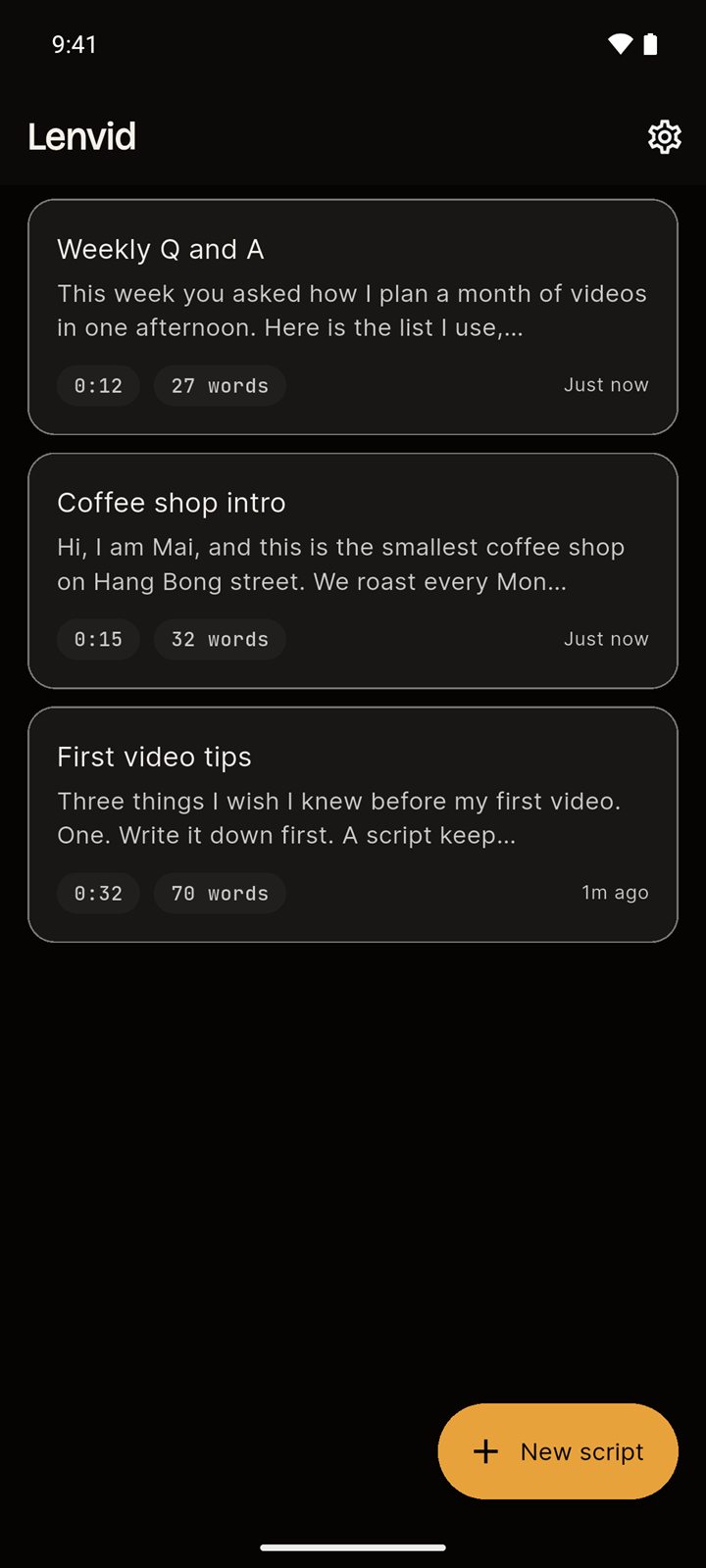
A new look, in light and dark
The whole app has been redesigned. Writing, recording, captions and cutting all work the way they did; the app is simply easier on the eyes, and it now follows your phone's light or dark setting.
Every screen now comes in light and dark. Before, the app was dark only.
Cards, buttons and notices look the same from one screen to the next.
The Brand voice screen is tidier and easier to read.
Fixed a crash that could happen when opening the script editor.
 Lenvid